> ## Documentation Index
> Fetch the complete documentation index at: https://vibekanban.com/docs/llms.txt
> Use this file to discover all available pages before exploring further.
# Remote Access
> Access your local Vibe Kanban instance from another device
Remote Access allows you to access a host instance of Vibe Kanban from another device, like your mobile phone.
# 1. Launch Vibe Kanban on the host device
Make sure you've started Vibe Kanban and logged in.
# 2. Generate a pairing code
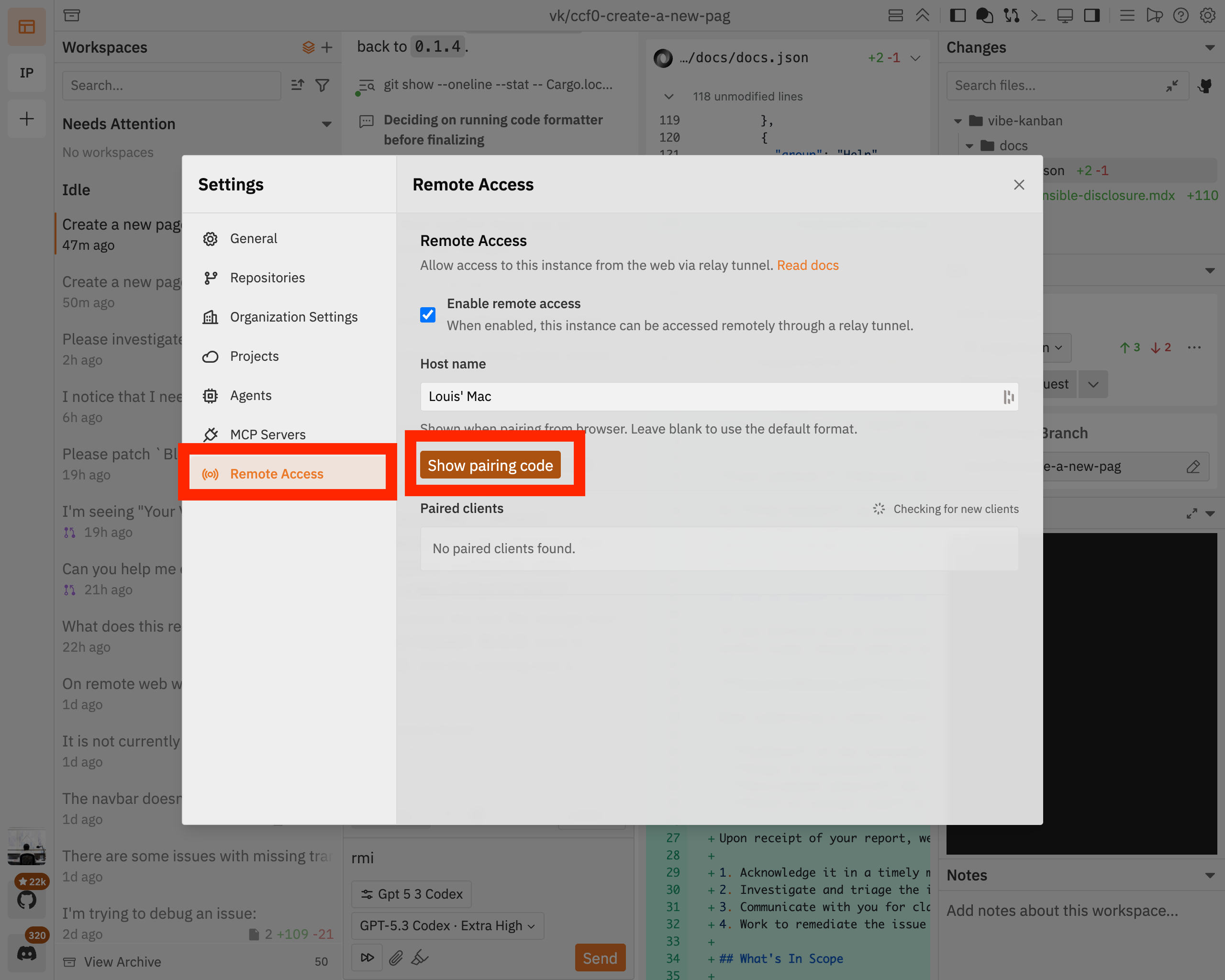
Open the settings dialog, navigate to the `Remote Access` tab and click `Show pairing code`:
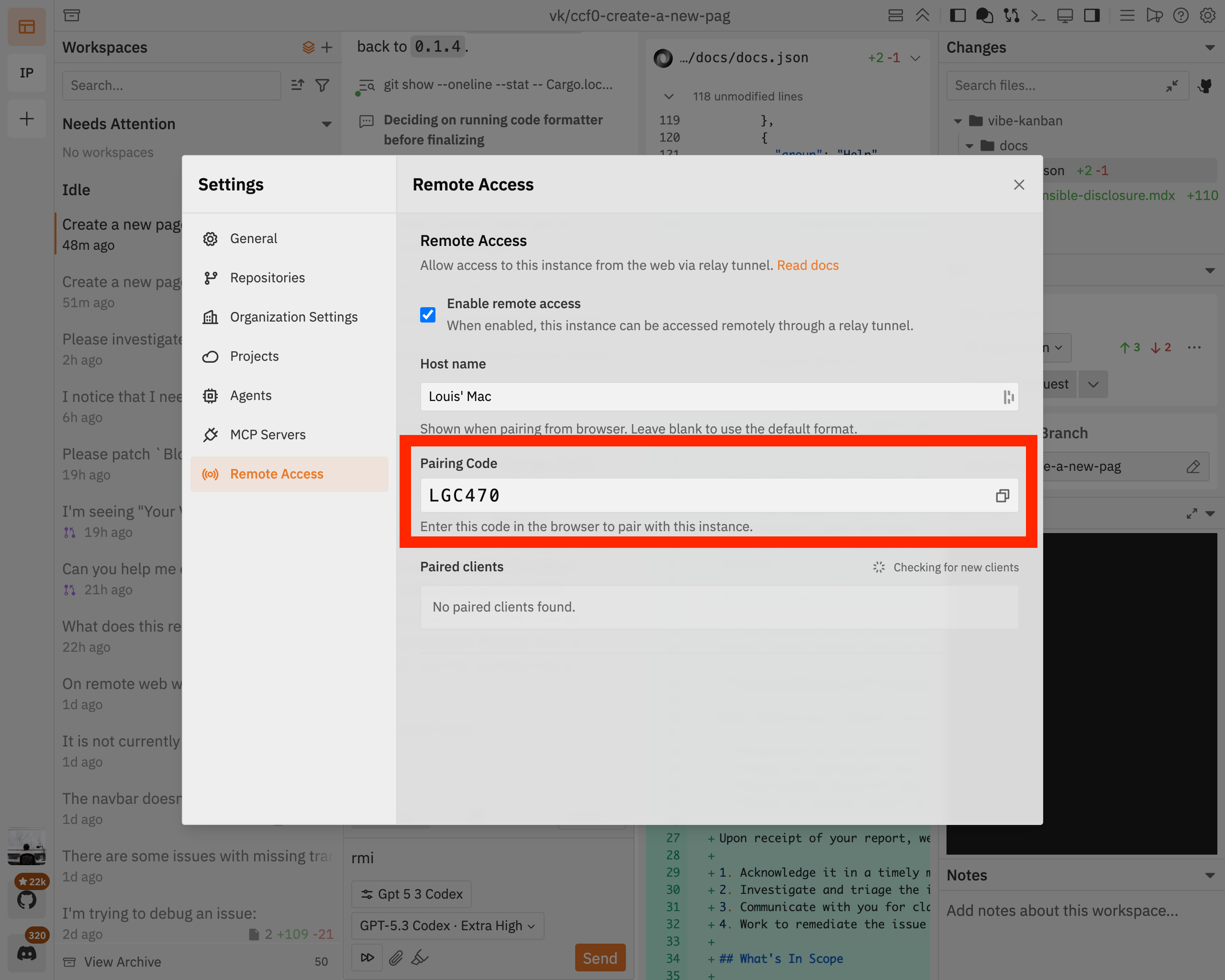
 Make a note of the pairing code:
 # 3. Log into Vibe Kanban cloud
On the client device where you'd now like to access your host machine from, navigate to [cloud.vibekanban.com](https://cloud.vibekanban.com) in a browser and log in.
# 4. Pair your client with your host
On your client, navigate to `Remote Access` and click `Link a host`. Select the relevant host from the dropdown:
# 3. Log into Vibe Kanban cloud
On the client device where you'd now like to access your host machine from, navigate to [cloud.vibekanban.com](https://cloud.vibekanban.com) in a browser and log in.
# 4. Pair your client with your host
On your client, navigate to `Remote Access` and click `Link a host`. Select the relevant host from the dropdown:
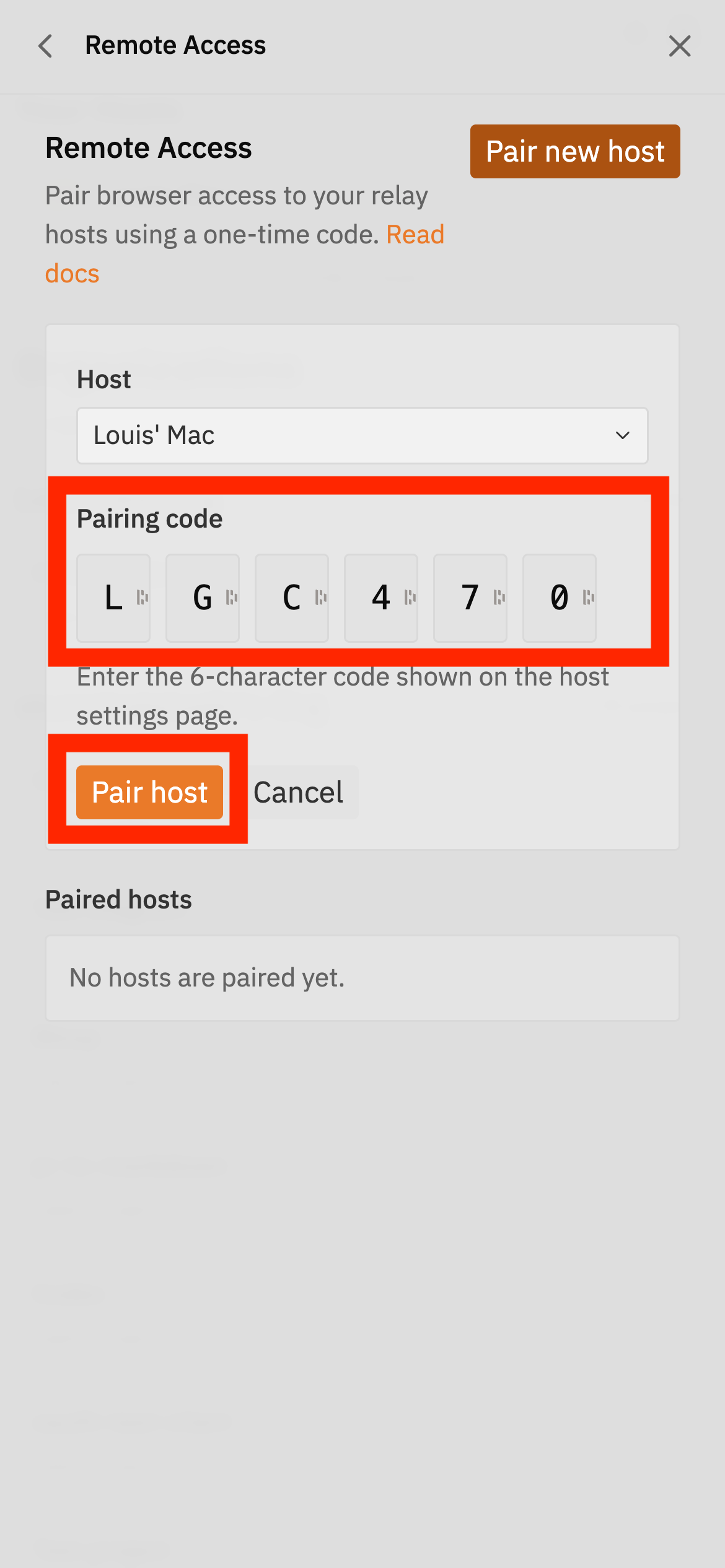
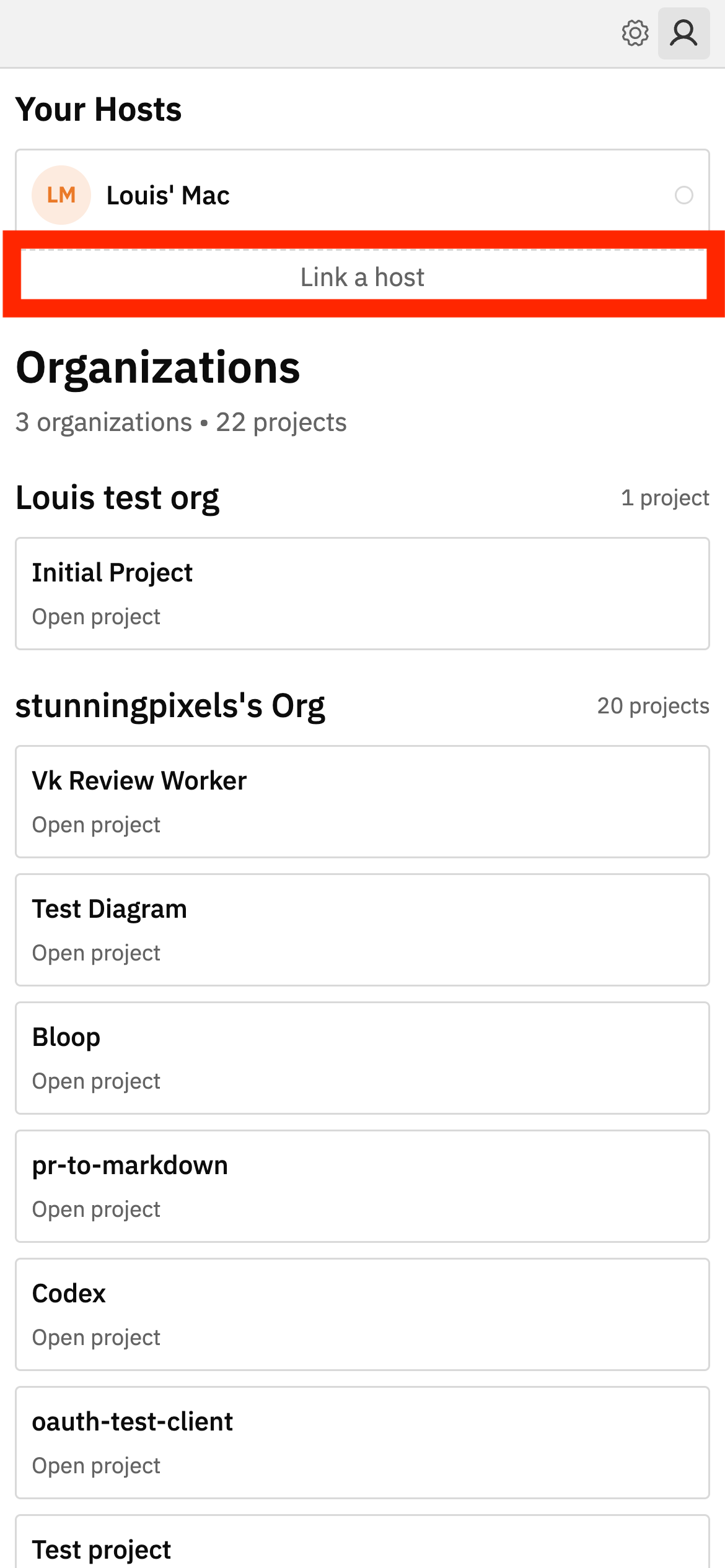 Enter the pairing code you generated earlier and click `Pair host`:
 # 5. Access workspaces from your host device
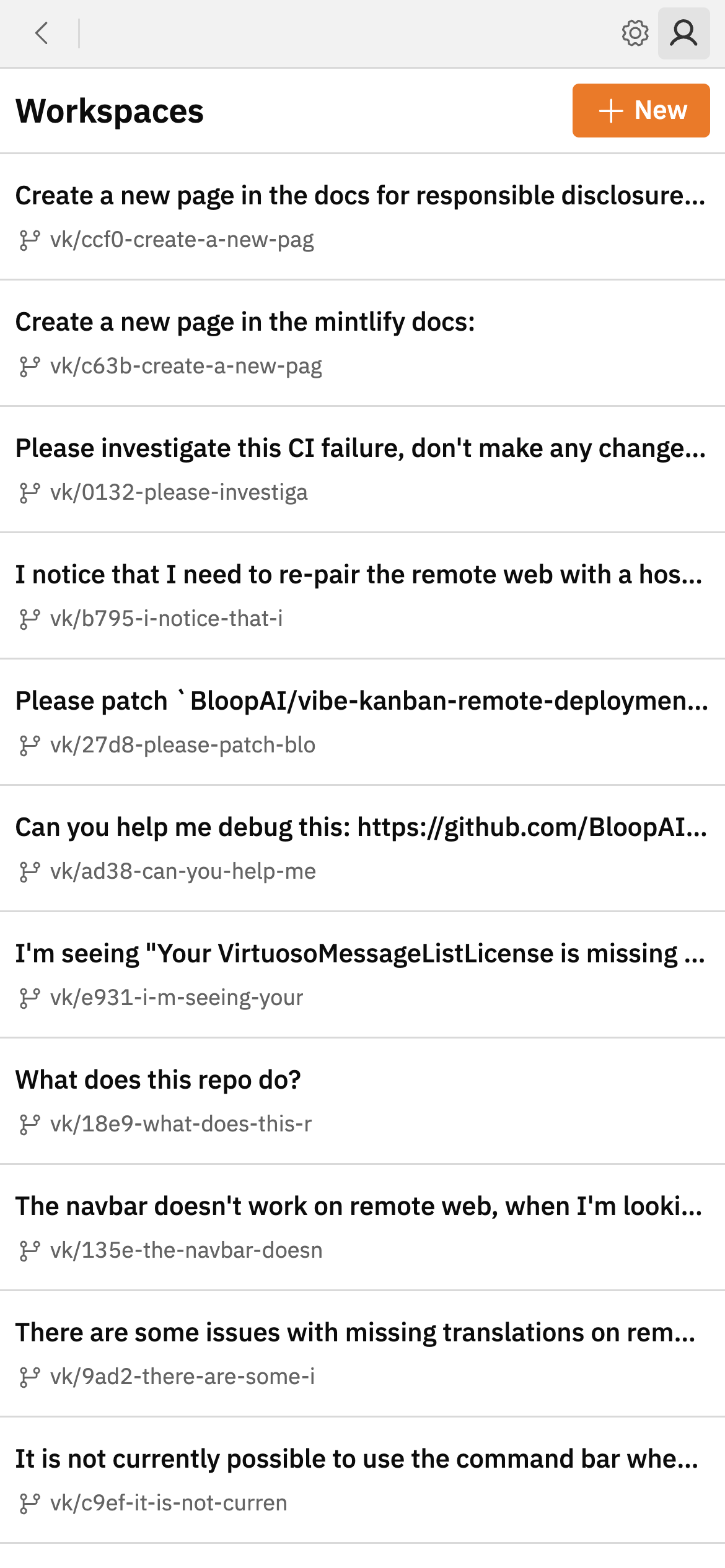
You can now exit the settings page. You should see the paired host, clicking on the host will list the host's workspaces.
# 5. Access workspaces from your host device
You can now exit the settings page. You should see the paired host, clicking on the host will list the host's workspaces.