> ## Documentation Index
> Fetch the complete documentation index at: https://vibekanban.com/docs/llms.txt
> Use this file to discover all available pages before exploring further.
# Projects & Repositories
> Configure project-specific settings and repository scripts in the Settings dialog
## Projects
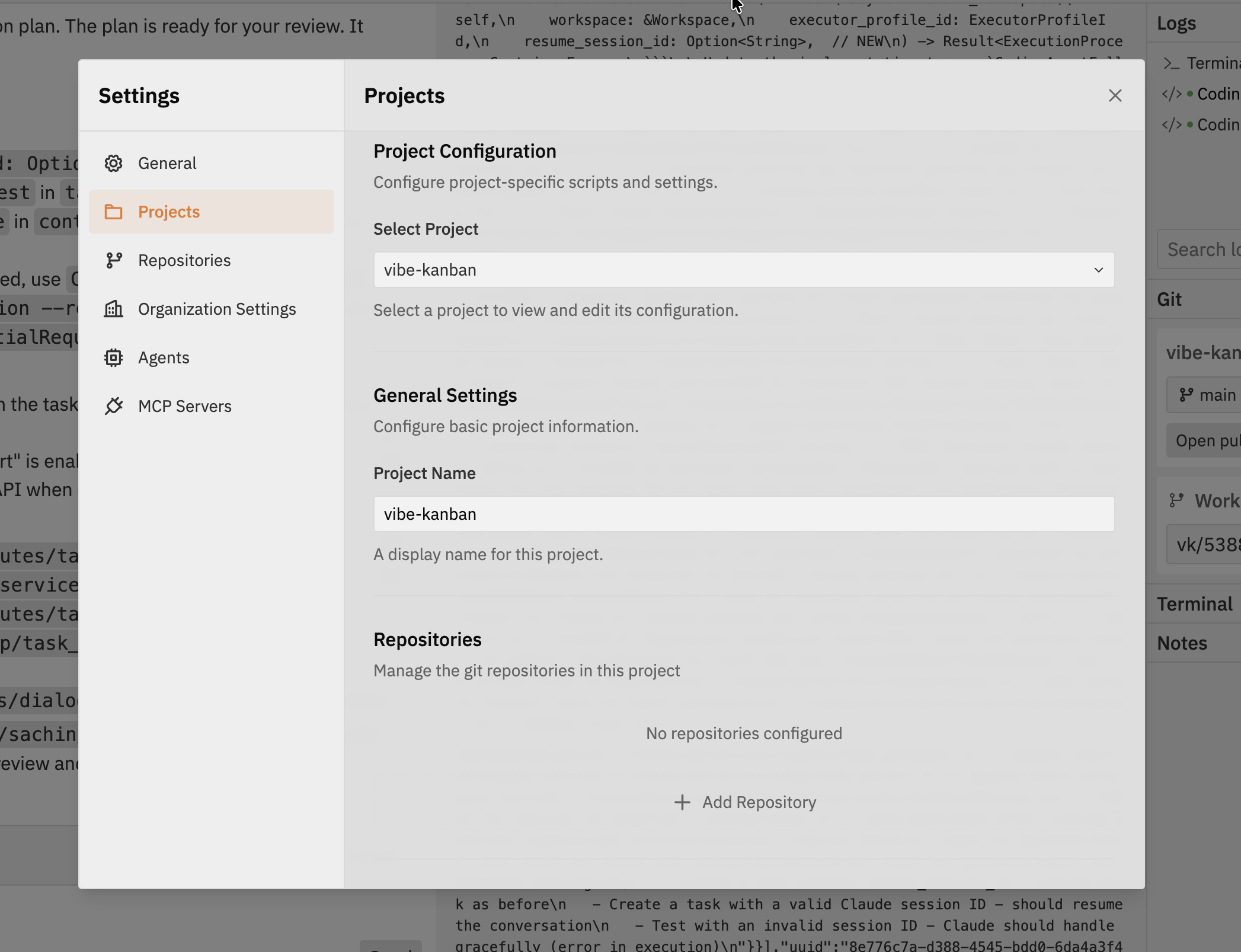 The Projects tab allows you to configure settings specific to individual projects.
### Accessing Project Settings
1. Open **Settings** from the Workspaces navbar
2. Select the **Projects** tab
3. Choose a project from the dropdown to view and modify its settings
Project settings override global settings where applicable.
## Repositories
The Projects tab allows you to configure settings specific to individual projects.
### Accessing Project Settings
1. Open **Settings** from the Workspaces navbar
2. Select the **Projects** tab
3. Choose a project from the dropdown to view and modify its settings
Project settings override global settings where applicable.
## Repositories
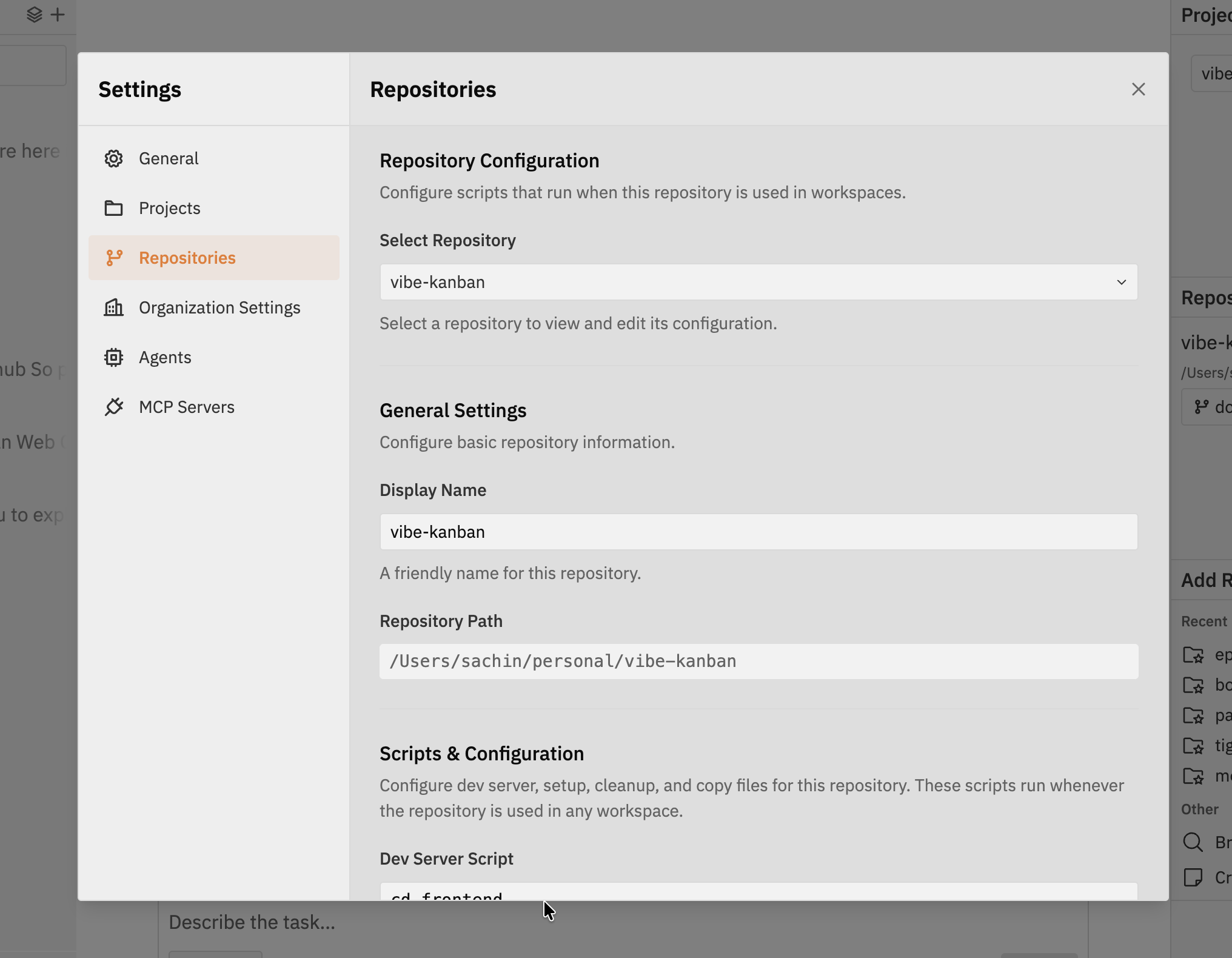 The Repositories tab allows you to configure scripts that run when a repository is used in workspaces.
### Accessing Repository Settings
1. Open **Settings** from the Workspaces navbar
2. Select the **Repositories** tab
3. Choose a repository from the dropdown to view and modify its settings
### General Settings
Configure basic repository information:
* **Display Name** - A friendly name for this repository
* **Repository Path** - The local path to the repository
## Scripts & Configuration
Configure dev server, setup, and cleanup scripts for this repository. These scripts run whenever the repository is used in any workspace, ensuring a consistent development environment.
### Dev Server Script
Command to start your development server. This enables the built-in preview browser in Workspaces, allowing you to see your application running as you make changes.
**Common examples:**
| Framework | Command |
| ---------------- | ---------------------------- |
| Vite | `npm run dev` |
| Next.js | `npm run dev` |
| Create React App | `npm start` |
| Django | `python manage.py runserver` |
| Rails | `rails server` |
The dev server must output its URL (e.g., `http://localhost:3000`) to stdout for Vibe Kanban to detect and display it in the preview panel.
Learn how to use the built-in preview browser with your dev server
### Setup Script
Commands that run **before** the coding agent starts working. Use this to prepare the development environment.
**Why use a setup script?**
* **Install dependencies** - Ensure all packages are installed before the agent modifies code
* **Build prerequisites** - Compile shared libraries or generate files the agent needs
* **Environment preparation** - Set up databases, pull Docker images, or configure services
**Examples:**
```bash theme={null}
# Node.js project
npm install
# Python project
pip install -r requirements.txt
# Multiple commands
npm install && npm run build:deps
# Rust project
cargo fetch
```
Setup scripts run in the repository's root directory. They execute once when the workspace starts, not on every agent message.
### Cleanup Script
Commands that run **when a workspace closes**. Use this to clean up resources and stop background processes.
**Why use a cleanup script?**
* **Stop services** - Terminate background processes that might conflict with other workspaces
* **Free resources** - Release database connections, Docker containers, or other resources
* **Clean temporary files** - Remove build artifacts or cache files
* **Format code** - Run formatters to ensure consistent code style after agent changes
**Examples:**
| Use Case | Command |
| ------------------------- | -------------------------------------------- |
| Stop Docker containers | `docker compose down` |
| Kill background processes | `pkill -f "node server.js"` |
| Clean build artifacts | `rm -rf dist/ .cache/` |
| Stop PostgreSQL | `pg_ctl stop -D /usr/local/var/postgres` |
| Kill process on port | `lsof -ti:3000 \| xargs kill -9 2>/dev/null` |
**Code formatting examples:**
| Language/Tool | Command |
| -------------------------------- | ---------------------------------- |
| JavaScript/TypeScript (Prettier) | `npx prettier --write .` |
| JavaScript/TypeScript (ESLint) | `npx eslint --fix .` |
| Rust (cargo fmt) | `cargo fmt` |
| Rust (Clippy) | `cargo clippy --fix --allow-dirty` |
| Python (Black) | `black .` |
| Python (Ruff) | `ruff check --fix .` |
| Go | `go fmt ./...` |
**Combining multiple commands:**
```bash theme={null}
# Chain commands with &&
docker compose down && rm -rf tmp/
# Format code after agent changes
npx prettier --write . && npx eslint --fix .
# Rust formatting and linting
cargo fmt && cargo clippy --fix --allow-dirty
# Use || true to ignore failures
pkill -f "node server.js" || true
rm -rf .cache/ || true
```
Cleanup scripts should be idempotent—safe to run even if the resources don't exist. Use `|| true` to prevent failures when there's nothing to clean up.
## Best Practices
Long-running setup scripts delay workspace startup. Install dependencies in setup, but avoid lengthy build processes unless necessary.
Scripts run from the repository root. Use relative paths or environment variables rather than hardcoded absolute paths.
Add `|| true` to commands that might fail but shouldn't block the workspace:
```bash theme={null}
npm install || true
```
Run your scripts manually in a terminal before configuring them in Vibe Kanban to ensure they work correctly.
## Related Documentation
Learn how the dev server integrates with the preview panel
Working with multiple repositories in a single workspace
The Repositories tab allows you to configure scripts that run when a repository is used in workspaces.
### Accessing Repository Settings
1. Open **Settings** from the Workspaces navbar
2. Select the **Repositories** tab
3. Choose a repository from the dropdown to view and modify its settings
### General Settings
Configure basic repository information:
* **Display Name** - A friendly name for this repository
* **Repository Path** - The local path to the repository
## Scripts & Configuration
Configure dev server, setup, and cleanup scripts for this repository. These scripts run whenever the repository is used in any workspace, ensuring a consistent development environment.
### Dev Server Script
Command to start your development server. This enables the built-in preview browser in Workspaces, allowing you to see your application running as you make changes.
**Common examples:**
| Framework | Command |
| ---------------- | ---------------------------- |
| Vite | `npm run dev` |
| Next.js | `npm run dev` |
| Create React App | `npm start` |
| Django | `python manage.py runserver` |
| Rails | `rails server` |
The dev server must output its URL (e.g., `http://localhost:3000`) to stdout for Vibe Kanban to detect and display it in the preview panel.
Learn how to use the built-in preview browser with your dev server
### Setup Script
Commands that run **before** the coding agent starts working. Use this to prepare the development environment.
**Why use a setup script?**
* **Install dependencies** - Ensure all packages are installed before the agent modifies code
* **Build prerequisites** - Compile shared libraries or generate files the agent needs
* **Environment preparation** - Set up databases, pull Docker images, or configure services
**Examples:**
```bash theme={null}
# Node.js project
npm install
# Python project
pip install -r requirements.txt
# Multiple commands
npm install && npm run build:deps
# Rust project
cargo fetch
```
Setup scripts run in the repository's root directory. They execute once when the workspace starts, not on every agent message.
### Cleanup Script
Commands that run **when a workspace closes**. Use this to clean up resources and stop background processes.
**Why use a cleanup script?**
* **Stop services** - Terminate background processes that might conflict with other workspaces
* **Free resources** - Release database connections, Docker containers, or other resources
* **Clean temporary files** - Remove build artifacts or cache files
* **Format code** - Run formatters to ensure consistent code style after agent changes
**Examples:**
| Use Case | Command |
| ------------------------- | -------------------------------------------- |
| Stop Docker containers | `docker compose down` |
| Kill background processes | `pkill -f "node server.js"` |
| Clean build artifacts | `rm -rf dist/ .cache/` |
| Stop PostgreSQL | `pg_ctl stop -D /usr/local/var/postgres` |
| Kill process on port | `lsof -ti:3000 \| xargs kill -9 2>/dev/null` |
**Code formatting examples:**
| Language/Tool | Command |
| -------------------------------- | ---------------------------------- |
| JavaScript/TypeScript (Prettier) | `npx prettier --write .` |
| JavaScript/TypeScript (ESLint) | `npx eslint --fix .` |
| Rust (cargo fmt) | `cargo fmt` |
| Rust (Clippy) | `cargo clippy --fix --allow-dirty` |
| Python (Black) | `black .` |
| Python (Ruff) | `ruff check --fix .` |
| Go | `go fmt ./...` |
**Combining multiple commands:**
```bash theme={null}
# Chain commands with &&
docker compose down && rm -rf tmp/
# Format code after agent changes
npx prettier --write . && npx eslint --fix .
# Rust formatting and linting
cargo fmt && cargo clippy --fix --allow-dirty
# Use || true to ignore failures
pkill -f "node server.js" || true
rm -rf .cache/ || true
```
Cleanup scripts should be idempotent—safe to run even if the resources don't exist. Use `|| true` to prevent failures when there's nothing to clean up.
## Best Practices
Long-running setup scripts delay workspace startup. Install dependencies in setup, but avoid lengthy build processes unless necessary.
Scripts run from the repository root. Use relative paths or environment variables rather than hardcoded absolute paths.
Add `|| true` to commands that might fail but shouldn't block the workspace:
```bash theme={null}
npm install || true
```
Run your scripts manually in a terminal before configuring them in Vibe Kanban to ensure they work correctly.
## Related Documentation
Learn how the dev server integrates with the preview panel
Working with multiple repositories in a single workspace