> ## Documentation Index
> Fetch the complete documentation index at: https://vibekanban.com/docs/llms.txt
> Use this file to discover all available pages before exploring further.
# Remote Projects
> Manage your Cloud projects across organisations
The Remote Projects settings page lets you view and manage all your Cloud-synced projects across your organisations.
 ## Accessing Remote Projects Settings
To open Remote Projects settings:
1. Open **Settings** (click the gear icon or press the settings shortcut)
2. Select **Remote Projects** from the sidebar
You must be signed in to access Remote Projects. If you're not signed in, you'll see a prompt to sign in first.
## Understanding the Layout
The Remote Projects page has a two-column layout:
| Column | Description |
| ----------------- | ------------------------------------------------------------------------------------------------- |
| **Organisations** | Lists all organisations you belong to. Personal organisations are marked with a "Personal" badge. |
| **Projects** | Shows projects in the selected organisation. Click the **+** button to create a new project. |
When you select a project, an edit form appears below where you can modify the project details.
## Viewing Projects
Click on an organisation in the left column to view its projects.
Projects appear in the right column with their colour indicator. Click any project to select it.
## Creating a Project
To create a new project in an organisation:
Click on the organisation where you want to create the project.
Click the **+** button in the Projects column header.
In the dialog that appears:
## Accessing Remote Projects Settings
To open Remote Projects settings:
1. Open **Settings** (click the gear icon or press the settings shortcut)
2. Select **Remote Projects** from the sidebar
You must be signed in to access Remote Projects. If you're not signed in, you'll see a prompt to sign in first.
## Understanding the Layout
The Remote Projects page has a two-column layout:
| Column | Description |
| ----------------- | ------------------------------------------------------------------------------------------------- |
| **Organisations** | Lists all organisations you belong to. Personal organisations are marked with a "Personal" badge. |
| **Projects** | Shows projects in the selected organisation. Click the **+** button to create a new project. |
When you select a project, an edit form appears below where you can modify the project details.
## Viewing Projects
Click on an organisation in the left column to view its projects.
Projects appear in the right column with their colour indicator. Click any project to select it.
## Creating a Project
To create a new project in an organisation:
Click on the organisation where you want to create the project.
Click the **+** button in the Projects column header.
In the dialog that appears:
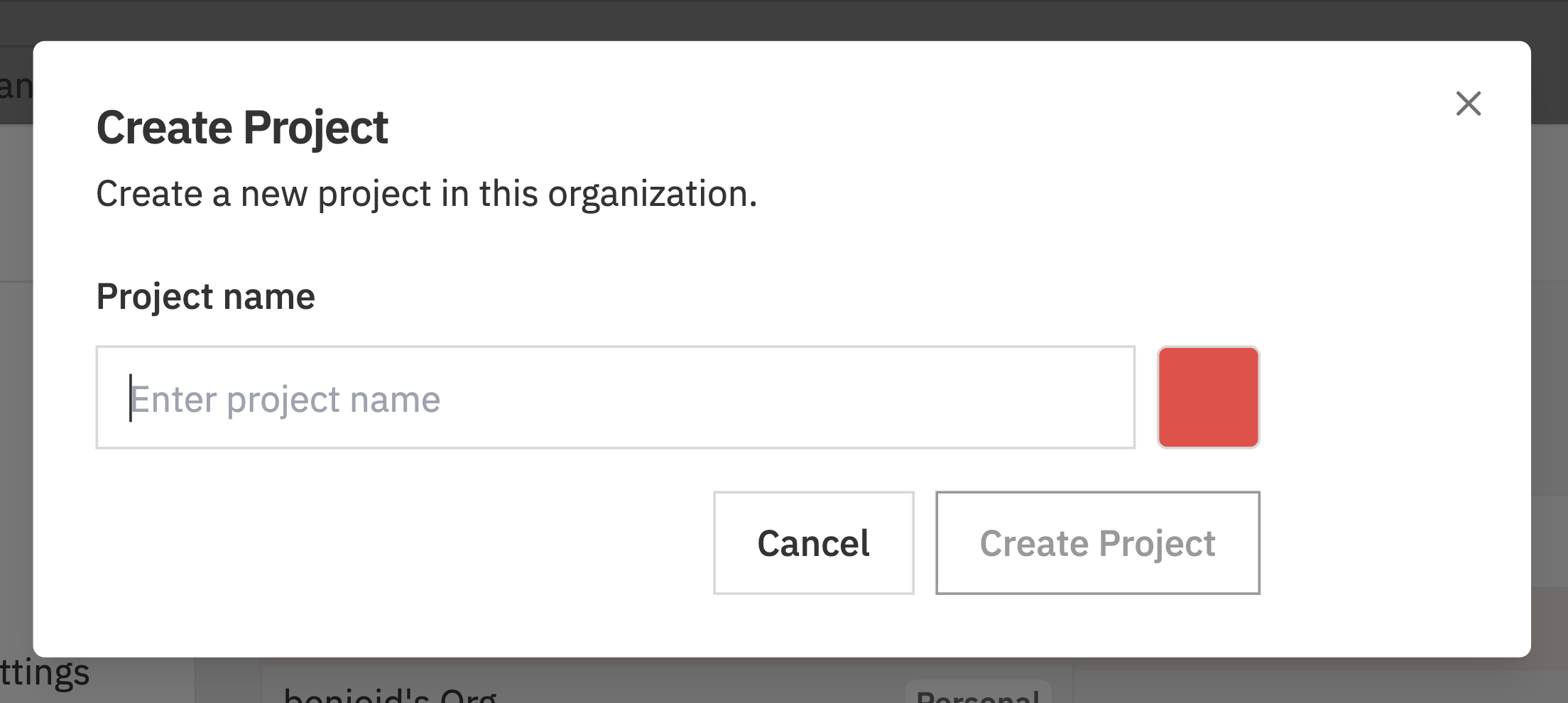 * **Project Name** - Enter a name for your project
* **Project Colour** - Click the colour swatch to choose a colour
Click **Create Project** to create the project. It will appear in the projects list.
## Editing a Project
To edit an existing project:
Click on the project you want to edit. An edit form appears below the two-column picker.
Update the project details:
* **Project Name** - Enter a name for your project
* **Project Colour** - Click the colour swatch to choose a colour
Click **Create Project** to create the project. It will appear in the projects list.
## Editing a Project
To edit an existing project:
Click on the project you want to edit. An edit form appears below the two-column picker.
Update the project details:
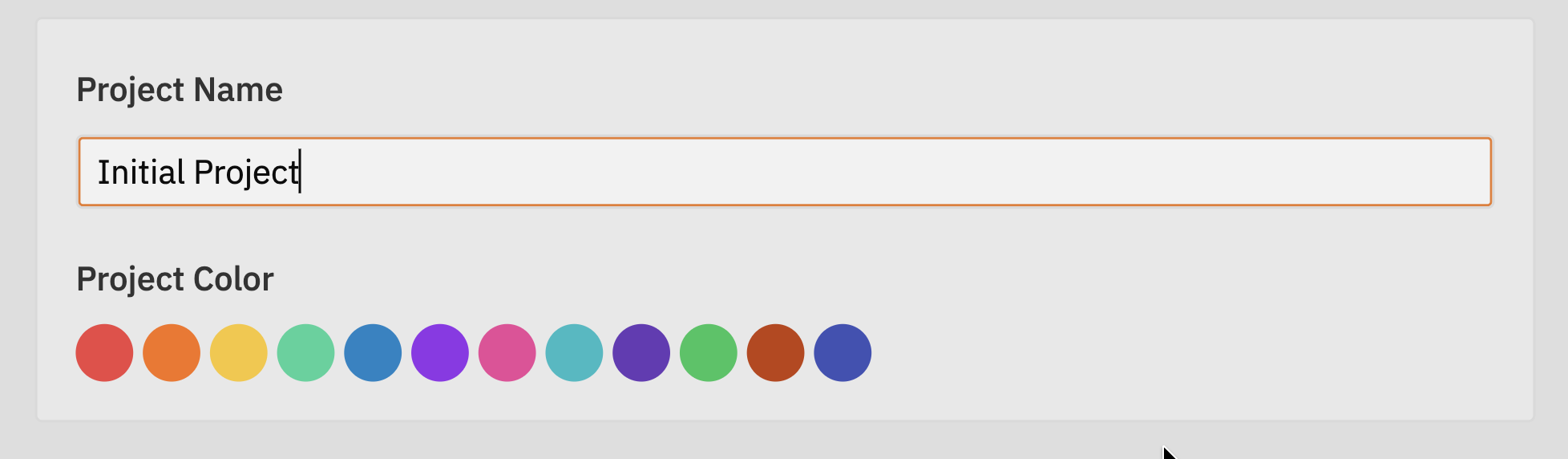 * **Project Name** - Change the display name
* **Project Colour** - Select a different colour from the palette
A save bar appears at the bottom when you have unsaved changes. Click **Save** to apply your changes, or **Discard** to revert.
Changes sync automatically to all team members in the organisation.
## Deleting a Project
Deleting a project permanently removes all its issues, comments, and data. This cannot be undone.
To delete a project:
Select the organisation and locate the project you want to delete.
Hover over the project and click the **⋯** (three dots) menu that appears.
* **Project Name** - Change the display name
* **Project Colour** - Select a different colour from the palette
A save bar appears at the bottom when you have unsaved changes. Click **Save** to apply your changes, or **Discard** to revert.
Changes sync automatically to all team members in the organisation.
## Deleting a Project
Deleting a project permanently removes all its issues, comments, and data. This cannot be undone.
To delete a project:
Select the organisation and locate the project you want to delete.
Hover over the project and click the **⋯** (three dots) menu that appears.
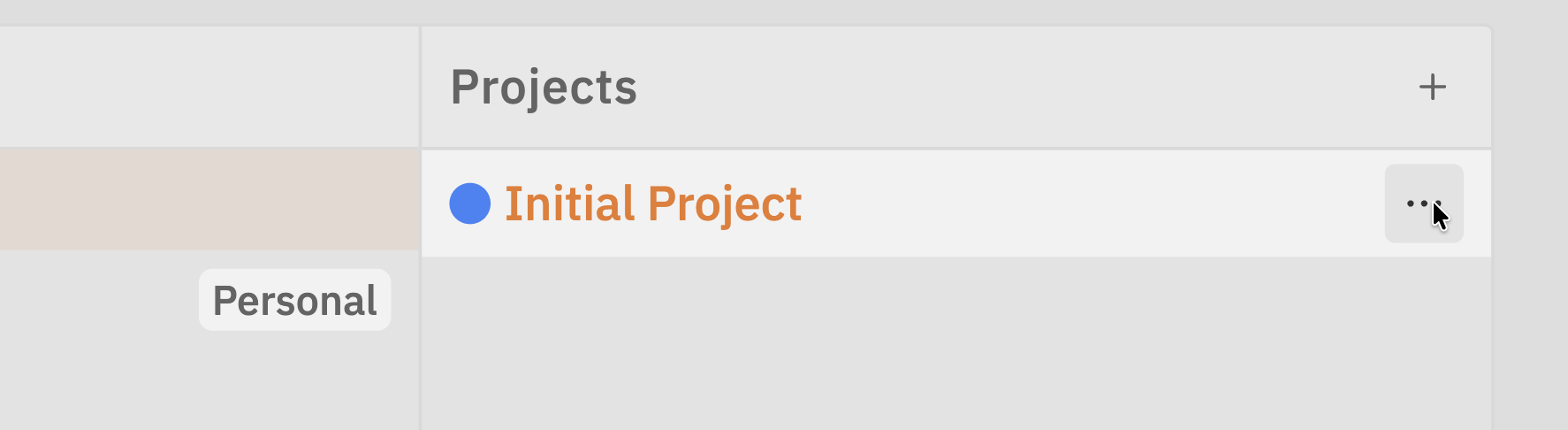 Select **Delete** from the menu.
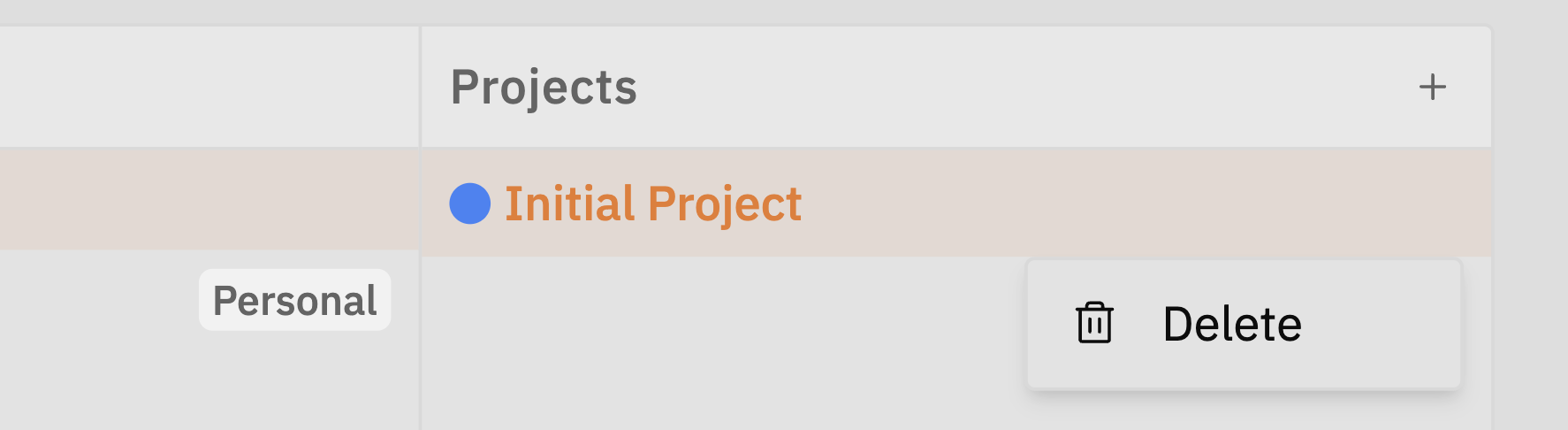 Confirm the deletion when prompted. The project and all its data will be permanently removed.
## Switching Between Organisations
If you belong to multiple organisations, you can quickly switch between them:
1. Click on a different organisation in the left column
2. The projects list updates to show that organisation's projects
3. If you have unsaved changes, you'll be prompted to discard them first
## Troubleshooting
Make sure you're signed in. If you just signed up, a personal organisation should have been created automatically.
If you still don't see any organisations:
1. Sign out and sign back in
2. Check your internet connection
3. Try refreshing the page
Check the following:
* You must have an organisation selected
* You need to be signed in
* Check your internet connection
If you're trying to create a project in someone else's organisation, you may not have permission.
The save bar appears when you have unsaved changes. Make sure to click **Save** before:
* Selecting a different project
* Selecting a different organisation
* Closing the settings dialog
If save fails, check your internet connection and try again.
## Related Documentation
* [Projects](/cloud/projects) - Working with projects on the kanban board
* [Organisation Settings](/settings/organization-settings) - Managing organisation members
* [Organisations](/cloud/organizations) - Understanding organisations
Confirm the deletion when prompted. The project and all its data will be permanently removed.
## Switching Between Organisations
If you belong to multiple organisations, you can quickly switch between them:
1. Click on a different organisation in the left column
2. The projects list updates to show that organisation's projects
3. If you have unsaved changes, you'll be prompted to discard them first
## Troubleshooting
Make sure you're signed in. If you just signed up, a personal organisation should have been created automatically.
If you still don't see any organisations:
1. Sign out and sign back in
2. Check your internet connection
3. Try refreshing the page
Check the following:
* You must have an organisation selected
* You need to be signed in
* Check your internet connection
If you're trying to create a project in someone else's organisation, you may not have permission.
The save bar appears when you have unsaved changes. Make sure to click **Save** before:
* Selecting a different project
* Selecting a different organisation
* Closing the settings dialog
If save fails, check your internet connection and try again.
## Related Documentation
* [Projects](/cloud/projects) - Working with projects on the kanban board
* [Organisation Settings](/settings/organization-settings) - Managing organisation members
* [Organisations](/cloud/organizations) - Understanding organisations