

What is an Organisation?
An organisation represents your team, company, or group. It contains:- Projects - Your kanban boards for managing tasks
- Members - People who can access the organisation
- Settings - Configuration that applies to all projects
Organisation Structure
An organisation acts as a container that holds two main things: Members are the people who belong to your organisation. Each member has a role:- Admins have full control - they can invite/remove members, change settings, and delete the organisation
- Members can work on all projects but cannot manage organisation settings
Personal Organisation
When you sign in for the first time, a personal organisation is automatically created for you, along with an Initial Project. This is your private workspace. Personal organisations:- Are created automatically on first sign-in
- Come with an “Initial Project” ready to use
- Cannot have additional members invited
- Cannot be deleted
- Are only accessible by you
Team organisations can be created without payment, and members can be invited without seat limits.
Organisation Settings
Access organisation settings by clicking the settings icon () next to your organisation name in the user menu.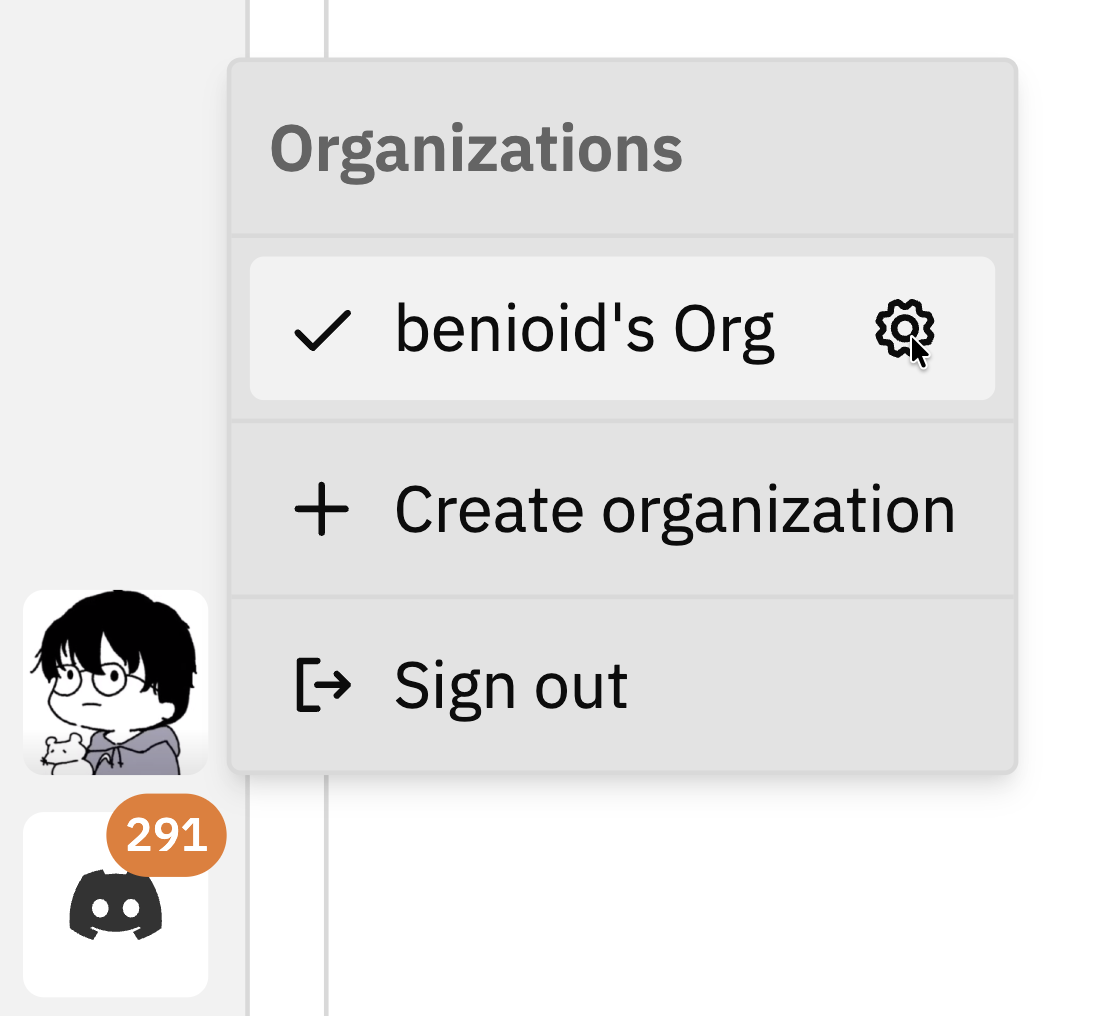
- Select organisation - Switch between organisations you belong to
- Manage members - View, invite, and remove members (Admin only)
- Manage invitations - View and revoke pending invitations (Admin only)
- Delete organisation - Permanently delete the organisation (Admin only)
Switching Organisations
If you’re a member of multiple organisations:1
Open the user menu
Click your profile icon in the bottom of the left sidebar.
2
Select the organisation
Click on the organisation you want to switch to from the list.
Leaving an Organisation
If you want to leave an organisation you’re a member of:1
Go to Settings
Open the organisation settings.
2
Find Leave Organisation
Scroll down to the Danger Zone section.
3
Click Leave
Click Leave Organisation and confirm.
Deleting an Organisation
Only organisation admins can delete an organisation. Personal organisations cannot be deleted.
1
Go to Settings
Open the organisation settings.
2
Find Danger Zone
Scroll down to the Danger Zone section.
3
Confirm deletion
Click Delete and confirm when prompted.
Before deleting, consider:
- Exporting any data you need
- Removing all members (they’ll lose access immediately upon deletion)
- This cannot be recovered
Organisation Roles
Members can have one of two roles:Role Permissions
The person who creates an organisation is automatically an Admin. There must always be at least one Admin.
Best Practices
One org per team/company
Create one organisation for your team or company. Don’t create separate orgs for each project.
Use descriptive names
Choose organisation names that clearly identify the team. “Engineering” is better than “Org 1”.
Have multiple admins
Ensure at least two people are admins in case one leaves or is unavailable.
Regular member audits
Periodically review who has access and remove members who no longer need it.
Troubleshooting
Can't create an organisation
Can't create an organisation
Problem: The create organisation button doesn’t appear or doesn’t work.Possible causes:
- You’re already in the organisation creation flow
- Network connectivity issues
Can't see an organisation I should have access to
Can't see an organisation I should have access to
Problem: An organisation you were invited to doesn’t appear in your list.Possible causes:
- The invitation is still pending (check your email)
- You signed in with a different account
- You were removed from the organisation
- Check your email for an invitation link
- Verify you’re signed in with the correct account
- Ask an admin of the organisation to check your membership
Can't leave the organisation
Can't leave the organisation
Problem: The “Leave Organisation” button is disabled.Cause: You’re the only admin.Solution:
- Promote another member to admin first
- Then you can leave
- Or delete the organisation if no one else needs it
Related Documentation
- Team Members - Inviting and managing organisation members
- Getting Started - Initial setup of Vibe Kanban Cloud