

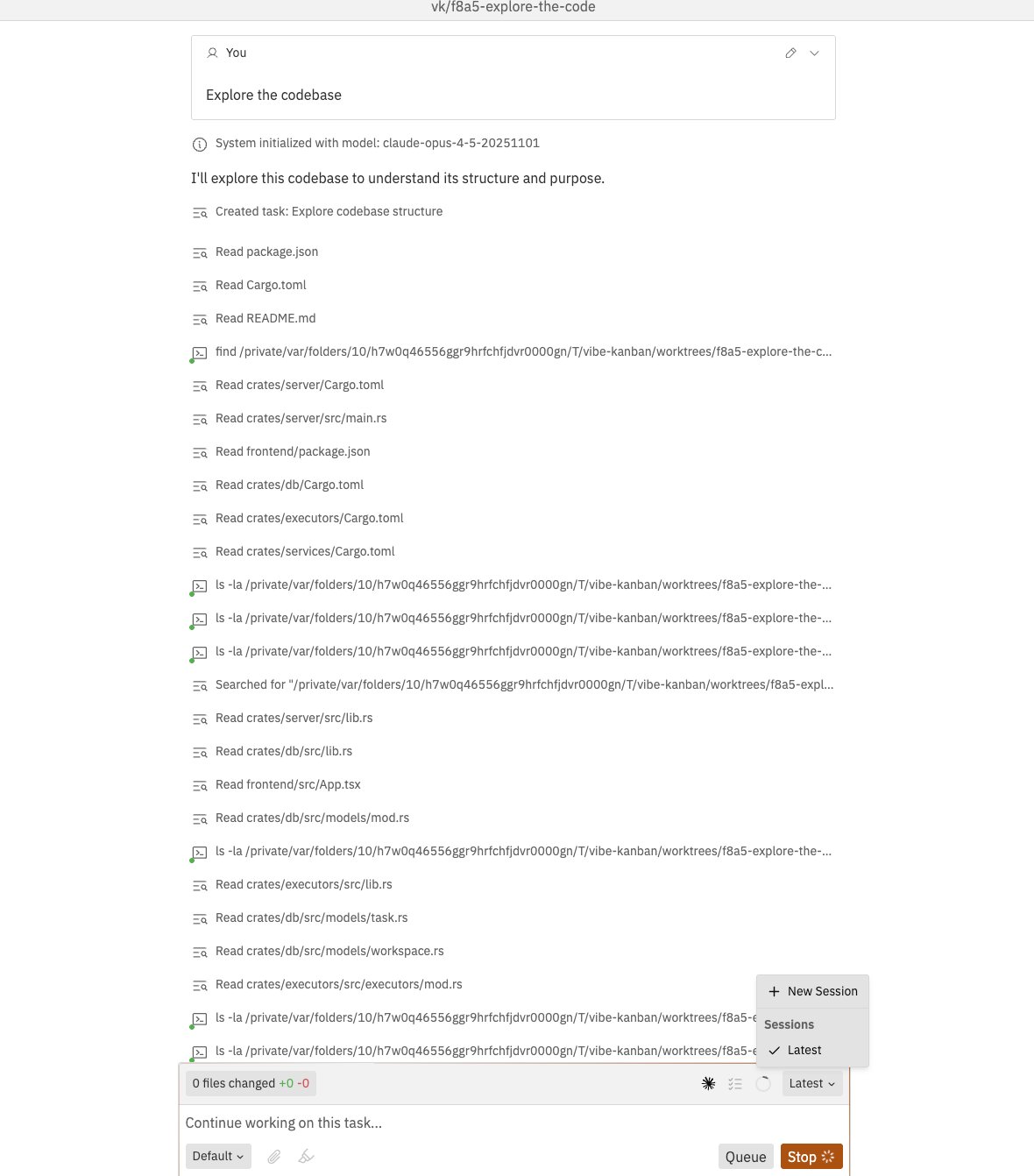
Message Types
The chat displays different types of messages, each with distinct styling:User Messages
Your messages appear with an edit option. Click the pencil icon to modify and resend a message.Agent Messages
Agent responses are rendered with full markdown support, including:- Code blocks with syntax highlighting
- Tables and lists
- Links and formatted text
System Messages
Informational messages from the system, such as model initialisation or status updates.Error Messages
Error messages appear in red with a warning icon. Click to expand and see full error details.Chat Input
Writing Messages
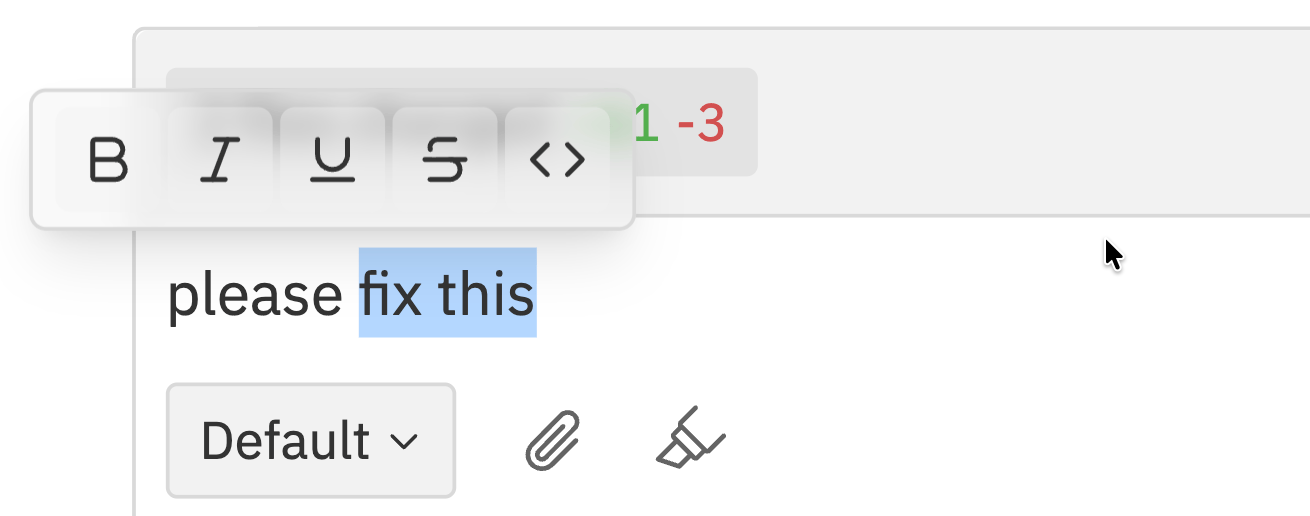
- Bold -
Cmd/Ctrl + Bor click B - Italic -
Cmd/Ctrl + Ior click I - Underline -
Cmd/Ctrl + Uor click U - Strikethrough - Click S
- Code - Click the code button or wrap with backticks
Attaching Images
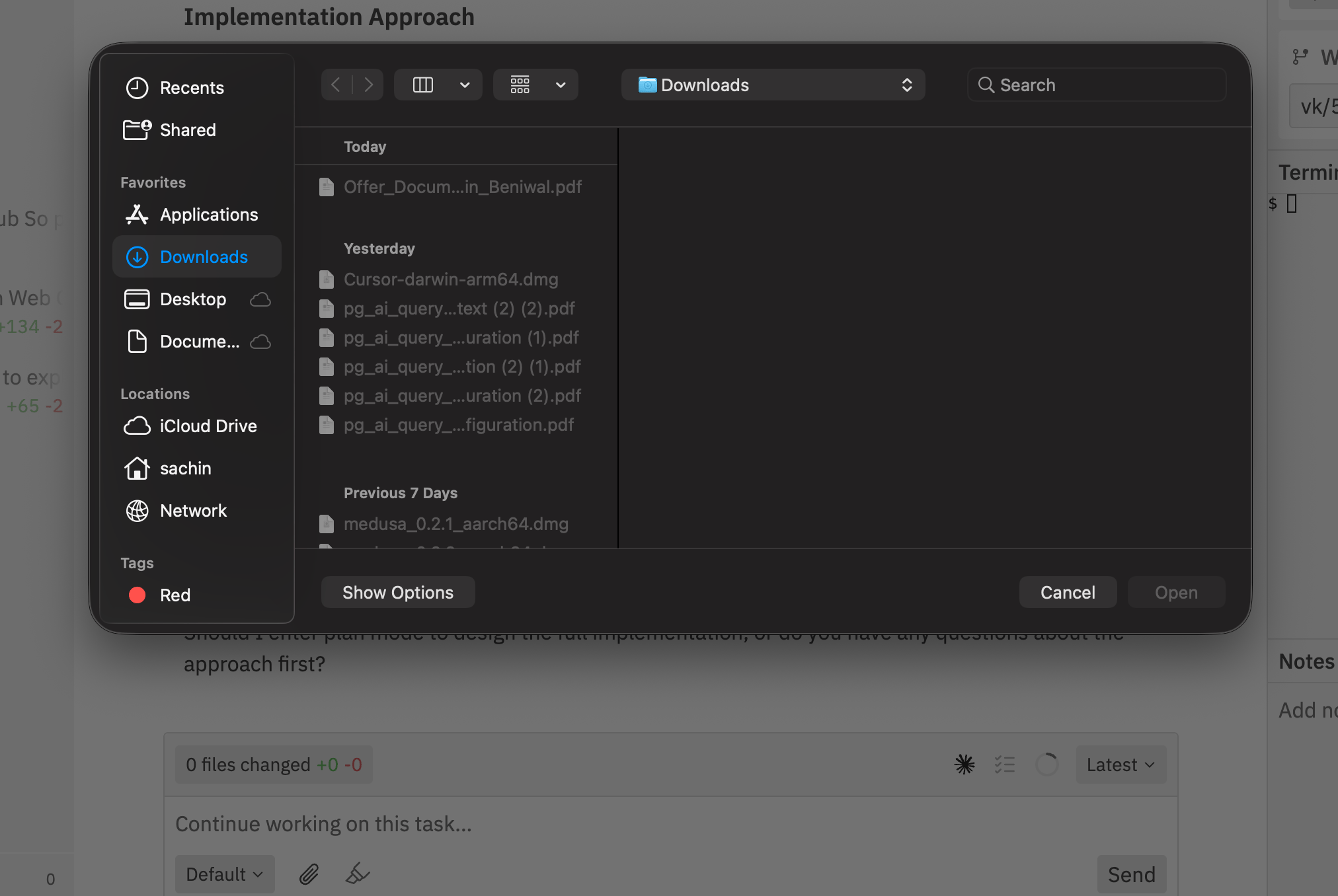
- Click the attachment button (paperclip icon) in the toolbar
- Drag and drop images directly into the chat
- Images are uploaded and referenced in your message
File Mentions
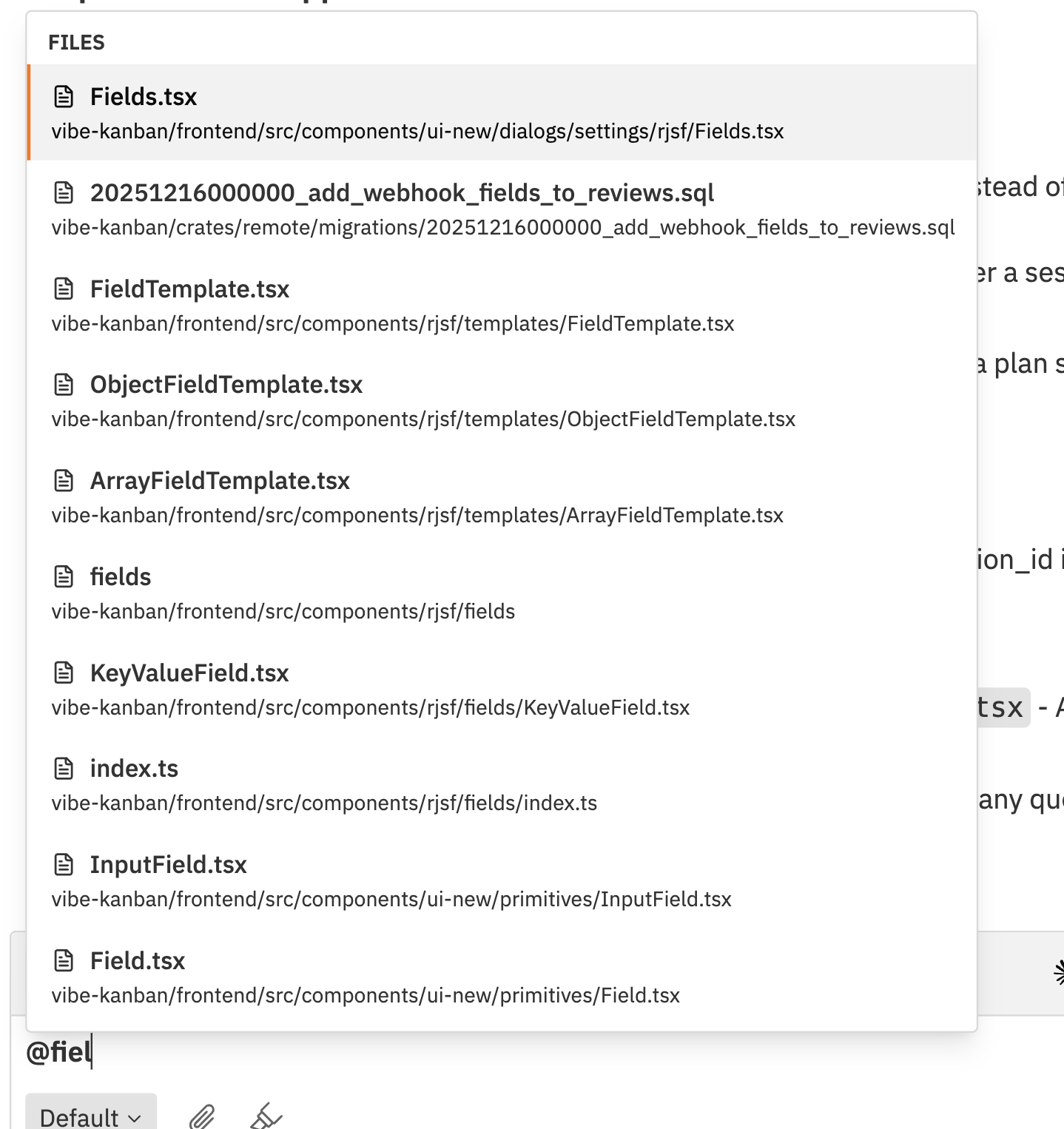
@ to mention files from your repository. The chat provides typeahead suggestions showing:
- Filename in bold
- Full path below each file
- Matches update as you type
Sending Messages
Send Actions
Execution States
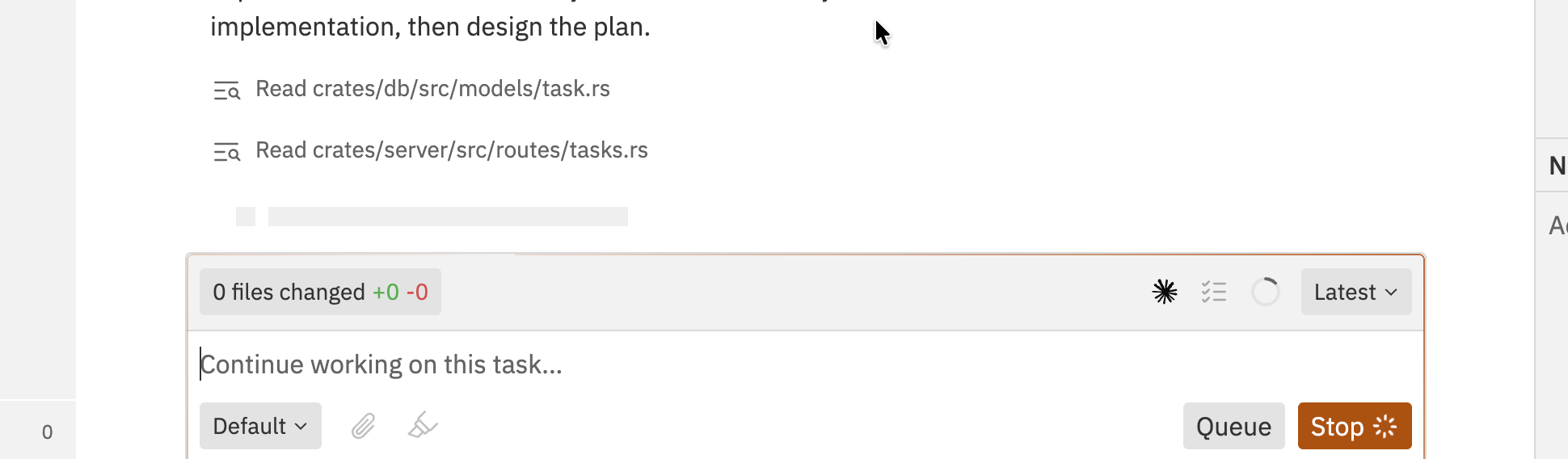
When the agent is running, you can queue a follow-up message instead of waiting for it to finish.
Agent Selection
Choosing an Agent
Select which coding agent to use from the Agent dropdown in the chat toolbar. Available agents depend on your configuration.Variants
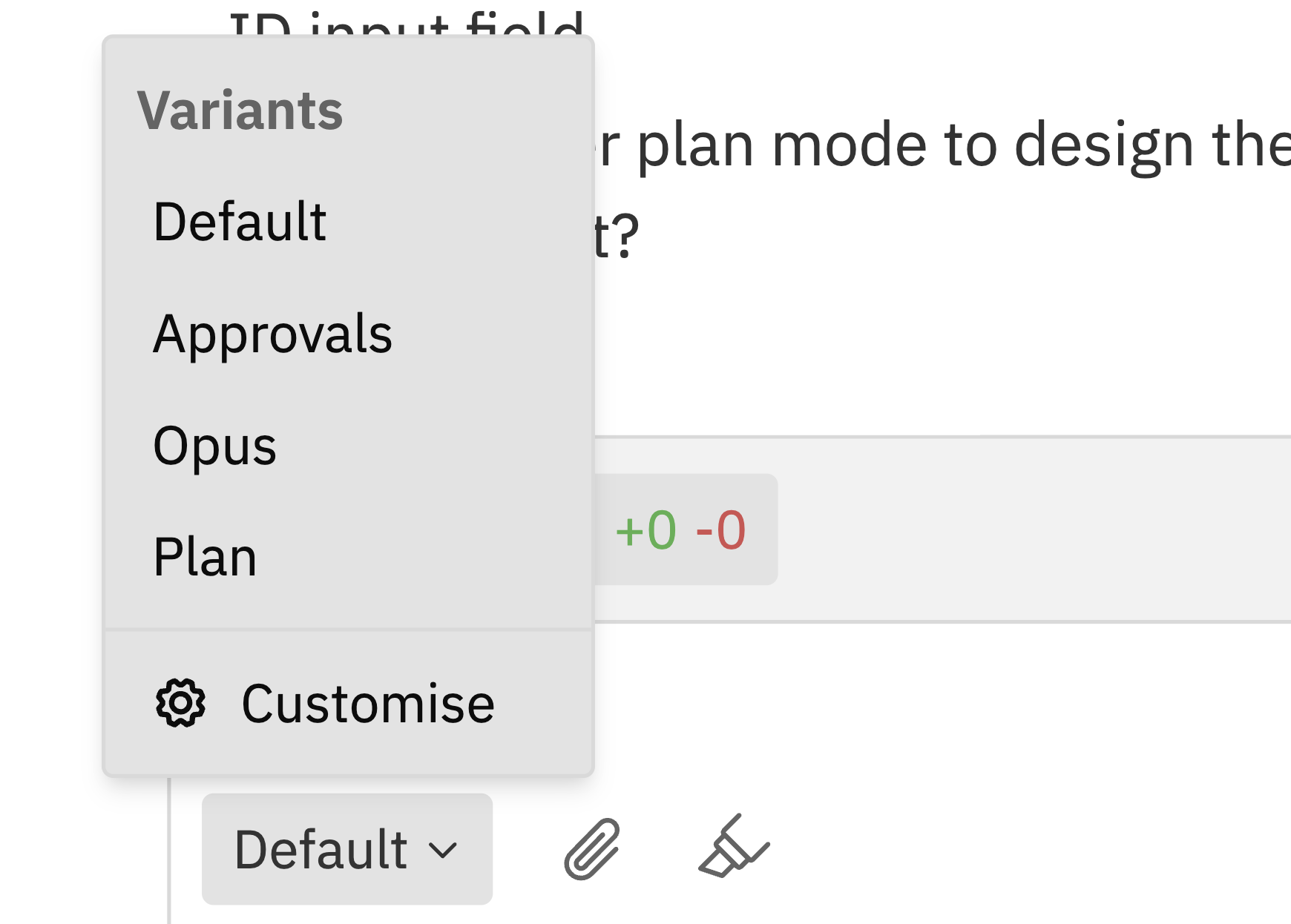
- Different model configurations
- Custom system prompts
- Specialised behaviours
Approval Workflow
Some agents (especially with planning mode enabled) ask for your approval before making changes. This gives you control over what gets implemented.Why Approvals Exist
- Prevent unwanted changes - Review the plan before code is written
- Catch misunderstandings early - Ensure the agent understood your request
- Guide the approach - Steer the agent toward your preferred solution
Reviewing Plans
When the agent needs approval, you’ll see an approval card in the chat:- Read the plan summary - What the agent intends to do
- Expand for details - Click to see the full plan with specific files and changes
- Choose an action:
- Approve - Agent proceeds with the plan
- Request Changes - Provide feedback for revision
Requesting Changes
If the plan isn’t quite right:- Type your feedback in the chat input explaining what should be different
- Click Request Changes
- The agent revises the plan based on your feedback
- Review the new plan and approve or request more changes
Disabling Approvals
If you want the agent to work autonomously without asking for approval:- Use an agent variant without planning mode
- Or configure
dangerously_skip_permissionsin agent settings (use with caution)
Editing Messages
You can edit and resend previous messages: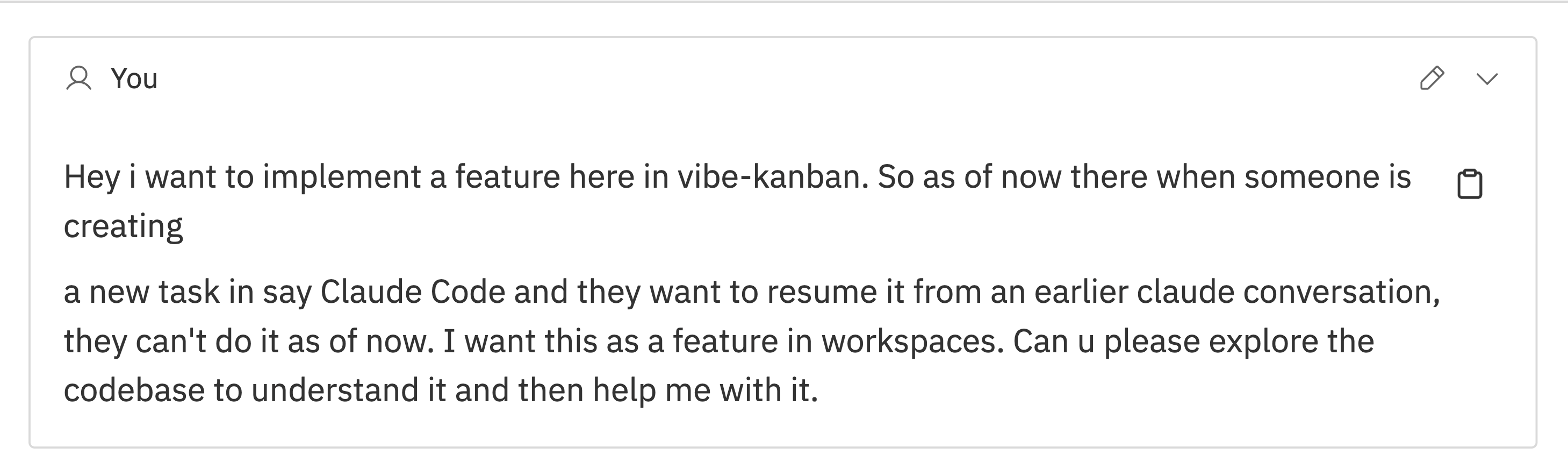
1
Click the Edit Button
Click the pencil icon on any of your messages.
2
Modify Your Message
The message content appears in an editable text area. Make your changes.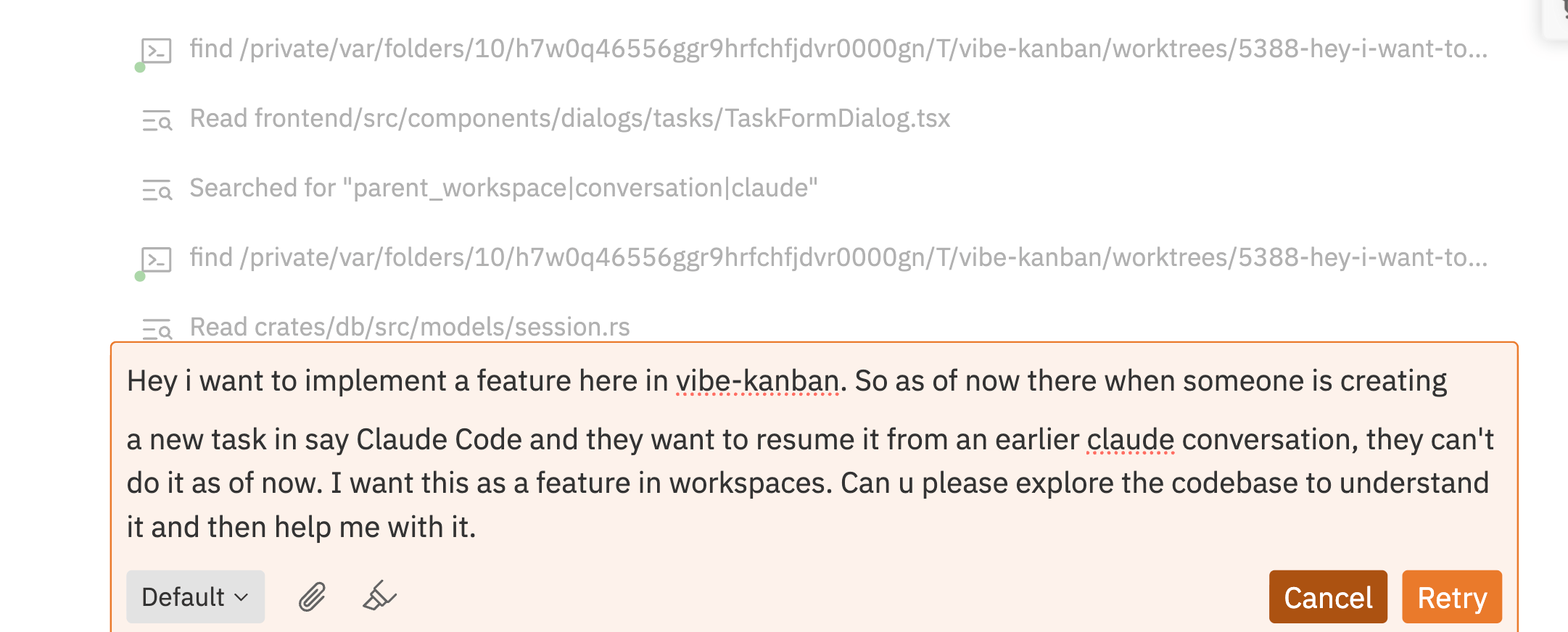
3
Submit the Edit
Click Retry to resend the modified message. The conversation continues from that point. Click Cancel to discard your changes.
Status Indicators
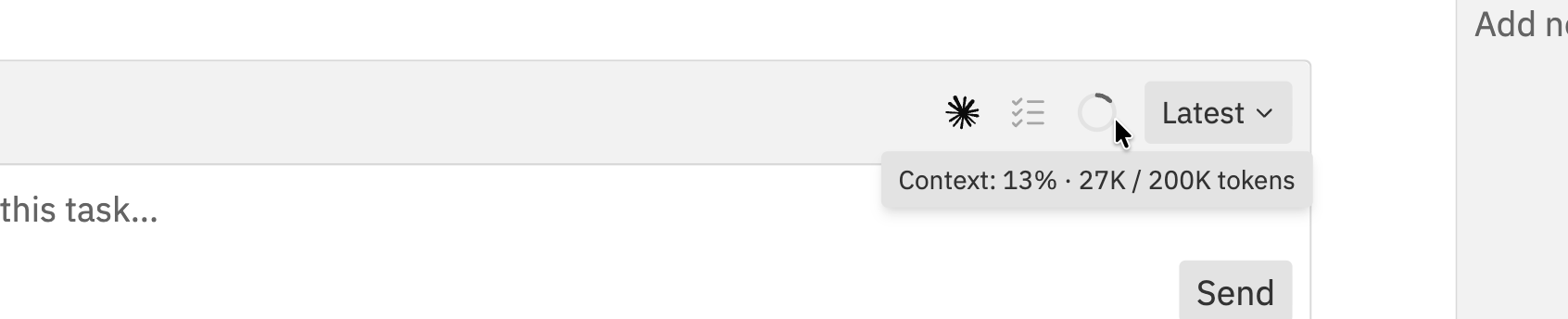
Token Usage
What are Tokens?
Tokens are how AI models measure text. Roughly:- 1 token ≈ 4 characters or ¾ of a word
- A 200K context window can hold about 150,000 words
Why Token Usage Matters
When usage is high:- Agent may “forget” earlier parts of the conversation
- Responses may become less accurate
- Agent might re-read files it already read
- Complex reasoning may suffer
Usage Levels
Tasks Progress
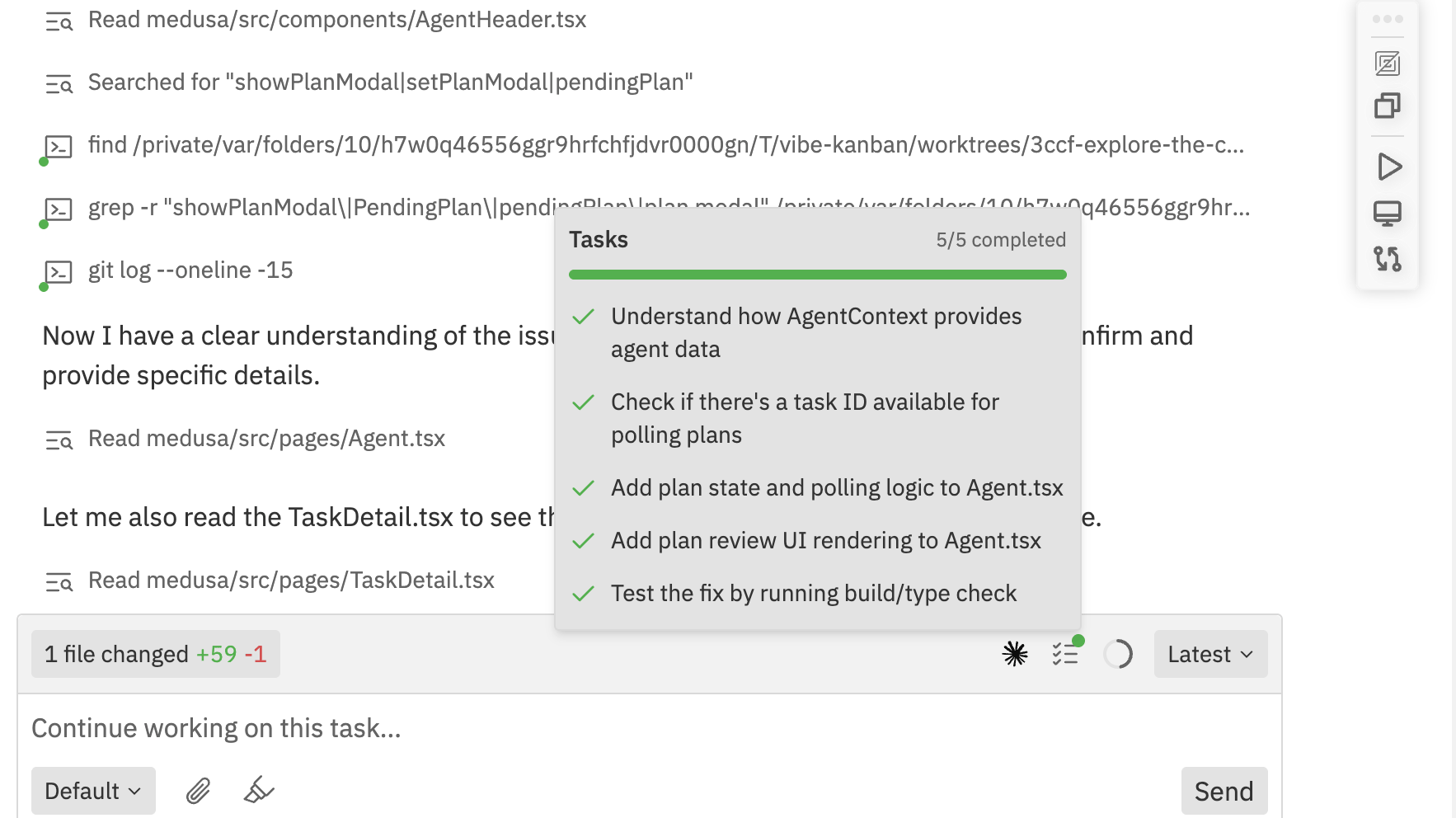
- Progress bar showing completion percentage
- Task count (e.g., “5/5 completed”)
- Individual tasks with checkmarks when complete
File Changes
The chat shows file modification summaries:- Green numbers indicate lines added
- Red numbers indicate lines removed
- Click to view the file in the Changes panel
Tool Outputs
Command Execution
When the agent runs commands, you’ll see:- Terminal icon for bash commands
- Exit code for completed commands
- Fix Script button if a command fails
Search Results
Search operations show summarised results. Click to expand and see full search output.Review Comments
When you add inline comments in the Changes panel:- A banner appears showing the comment count
- Comments are automatically included when you send a message
- Click Clear to remove pending comments
Keyboard Shortcuts
Related Documentation
- Slash Commands - Quick actions with slash commands
- Sessions - Managing multiple conversation sessions
- Interface Guide - Overview of the workspace layout
- Command Bar - Quick actions and shortcuts