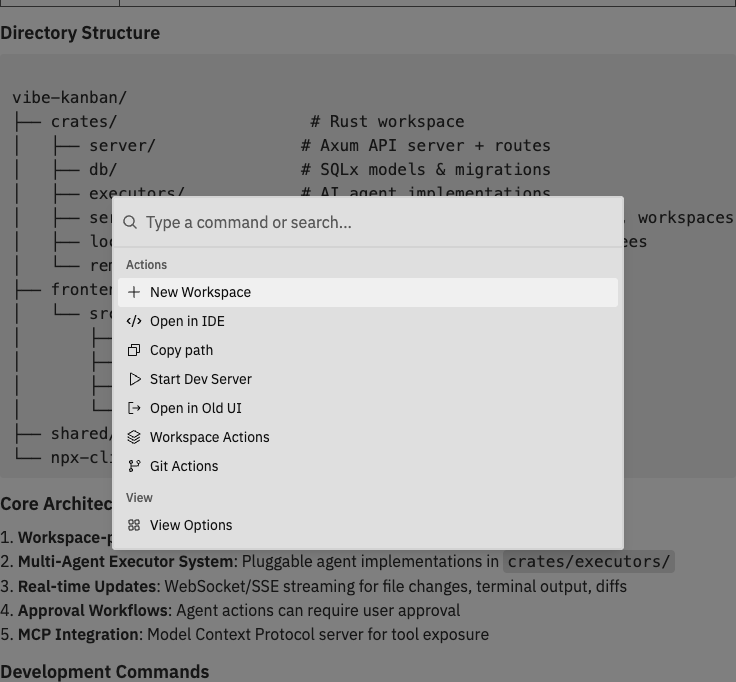
Command bar showing search field and list of available commands
The command bar is the central hub for navigating and controlling your workspace. Access every action quickly without leaving the keyboard.

Opening the Command Bar

PlatformShortcut
MacCmd + K
Windows/LinuxCtrl + K
You can also click the command bar icon in the navbar.

Available Commands

Quick Actions

Access these from the root command bar page:
CommandDescription
New WorkspaceCreate a new workspace
Open in IDEOpen the workspace in your configured editor
Copy PathCopy the workspace path to clipboard
Toggle Dev ServerStart or stop the dev server
Open in Old UISwitch to the classic kanban interface
FeedbackSend feedback about Workspaces
Workspaces GuideOpen the onboarding guide
SettingsOpen application settings

Workspace Actions

Manage the current workspace:
CommandDescription
Start ReviewBegin a code review session
Rename WorkspaceChange the workspace name
Duplicate WorkspaceCreate a copy of the workspace
Pin/Unpin WorkspaceToggle pinned status
Archive/UnarchiveMove to/from archive
Delete WorkspacePermanently delete the workspace
Run Setup ScriptExecute the repository setup script
Run Cleanup ScriptExecute the repository cleanup script

Git Actions

Perform git operations:
CommandDescription
Create Pull RequestOpen PR creation dialog
MergePull target branch changes into your working branch
RebaseRebase your working branch onto target branch
Change Target BranchSwitch the merge target
PushPush commits to remote (when applicable)
Git commands are context-aware and only appear when they’re applicable to the current workspace state.

View Options

Control panel visibility:
CommandDescription
Toggle Left SidebarShow/hide workspace list
Toggle Chat PanelShow/hide conversation
Toggle Right SidebarShow/hide details
Toggle Changes PanelShow/hide code changes
Toggle Logs PanelShow/hide process logs
Toggle Preview PanelShow/hide browser preview

Diff Options

Customise the diff viewer (available when changes panel is visible):
CommandDescription
Toggle Diff View ModeSwitch between unified and side-by-side
Toggle Wrap LinesEnable/disable line wrapping
Toggle Ignore WhitespaceShow/hide whitespace changes
Expand All DiffsExpand all collapsed diffs
Collapse All DiffsCollapse all expanded diffs

Repository Actions

For workspaces with multiple repositories, manage individual repos:
CommandDescription
Copy Repo PathCopy specific repository path
Open Repo in IDEOpen just this repository
Repository SettingsConfigure repository options
Create PR (repo)Create PR for specific repo
Merge (repo)Merge specific repository
Rebase (repo)Rebase specific repository
Change Target Branch (repo)Change target for specific repo

Keyboard Shortcuts

Global Shortcuts

ShortcutAction
Cmd/Ctrl + KOpen command bar
EscapeClose command bar or dialog

Command Bar Navigation

The command bar organises commands into pages:
  1. Root - Quick actions and navigation to other pages
  2. Workspace Actions - Workspace management commands
  3. Git Actions - Version control operations
  4. View Options - Panel visibility toggles
  5. Diff Options - Diff viewer settings
  6. Repo Actions - Per-repository commands (multi-repo workspaces)
Use the search field to filter commands across all pages, or navigate to specific pages for categorised access.
Start typing to search for any command. The command bar uses fuzzy matching, so you don’t need to type the exact command name.

Power User Tips

These commands will speed up your workflow significantly:
ShortcutWhat It Does
Cmd/Ctrl + Kn → EnterNew workspace
Cmd/Ctrl + Kpr → EnterCreate pull request
Cmd/Ctrl + Kchanges → EnterToggle changes panel
Cmd/Ctrl + Kpreview → EnterToggle preview panel
Cmd/Ctrl + Kide → EnterOpen in your IDE
The command bar uses fuzzy matching - you can type partial words or abbreviations:
  • nw matches “New Workspace”
  • cpr matches “Create Pull Request”
  • tog prev matches “Toggle Preview Panel”
  • reb matches “Rebase”
Use the command bar to quickly show/hide panels without moving your mouse:
  1. Press Cmd/Ctrl + K
  2. Type toggle
  3. See all toggle options
  4. Select the panel you want to show/hide
Some commands only appear when relevant:
  • Push only shows when you have unpushed commits
  • Rebase only shows when you’re behind target
  • Repo Actions only shows in multi-repo workspaces
  • Diff Options only shows when Changes panel is visible