

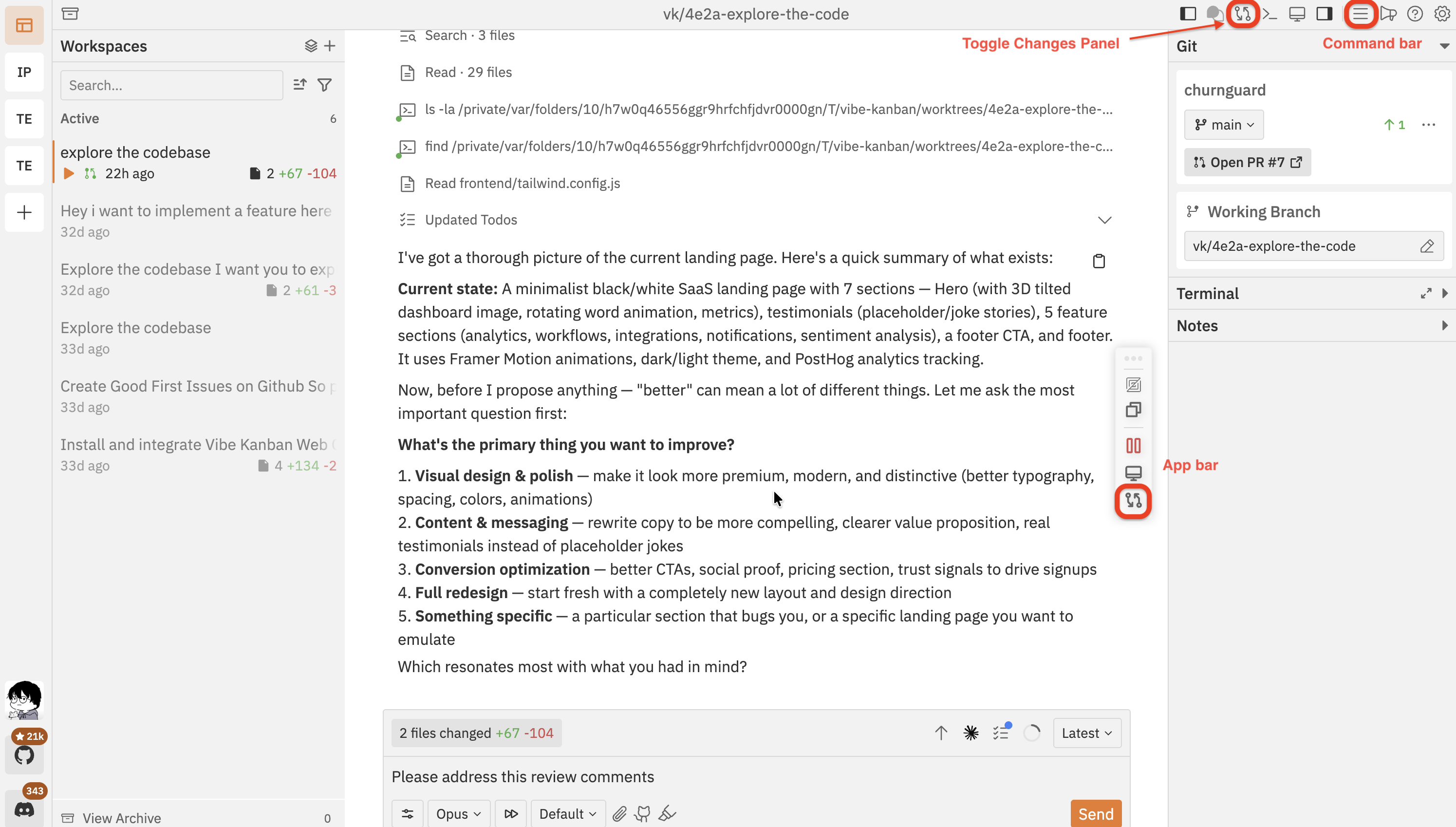
1. Open the changes panel
There are three ways to open the changes panel:- Click the Toggle Changes Panel button in the navbar
- Click the changes icon in the app bar
- Open the command bar from its icon in the navbar or with
Cmd/Ctrl + K, then search for “Show Changes Panel”
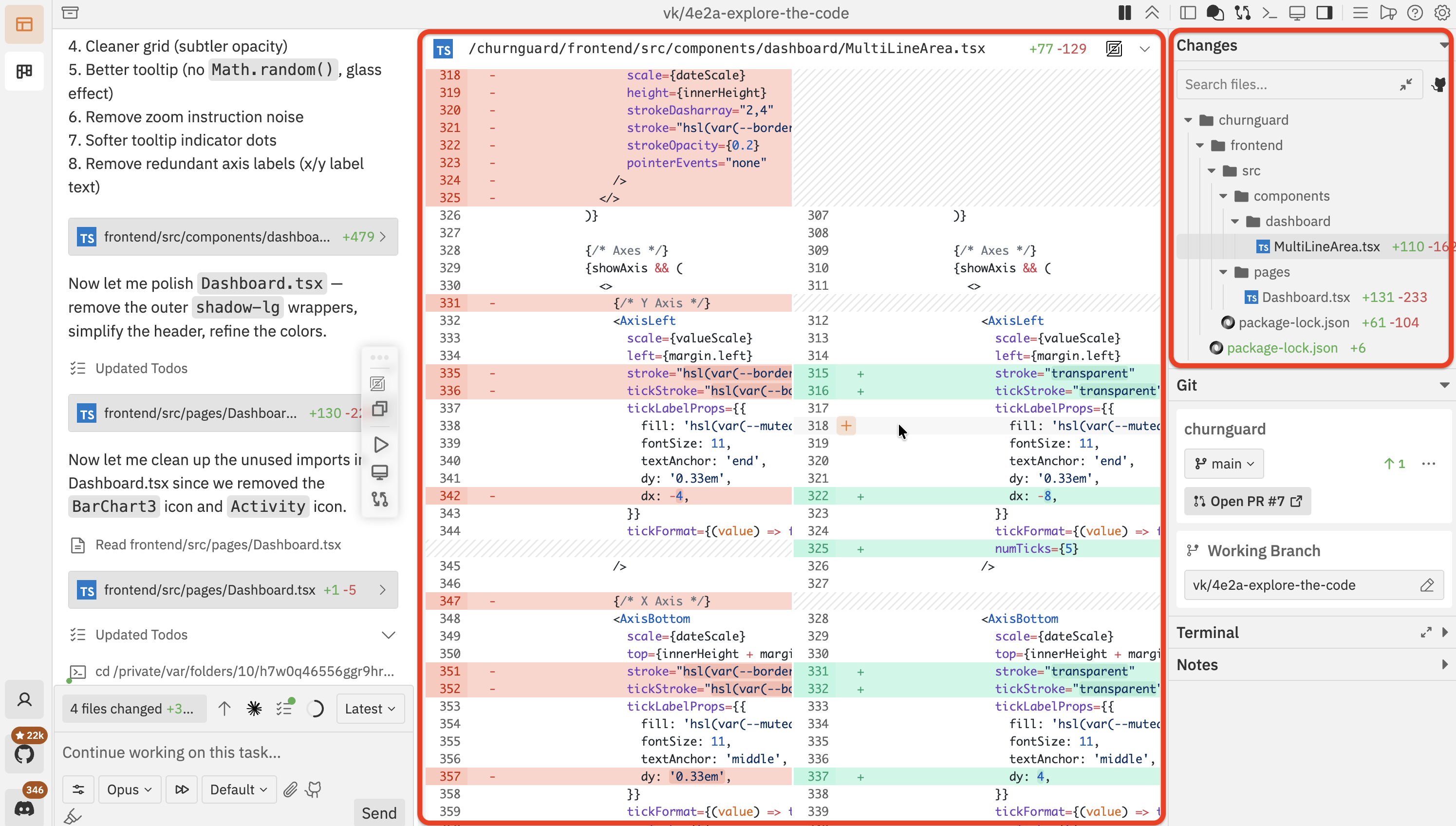
2. Navigate the file tree
The file tree shows all files that were added, modified, or deleted. Click any file to load its diff in the viewer.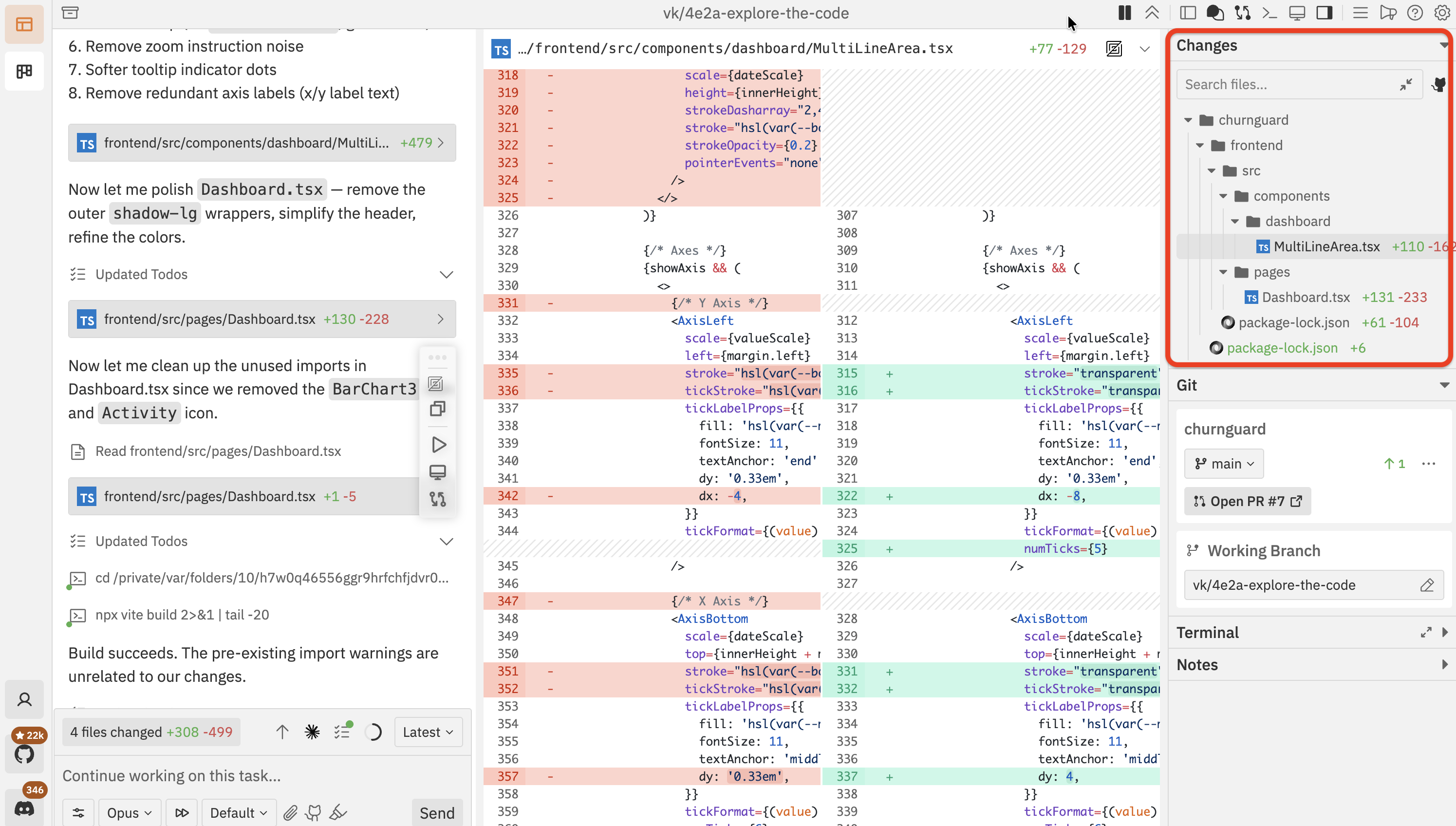
3. Read diffs
The diff viewer uses colour coding to show what changed: green for additions, red for deletions, and grey for unchanged context lines. You can switch between two view modes: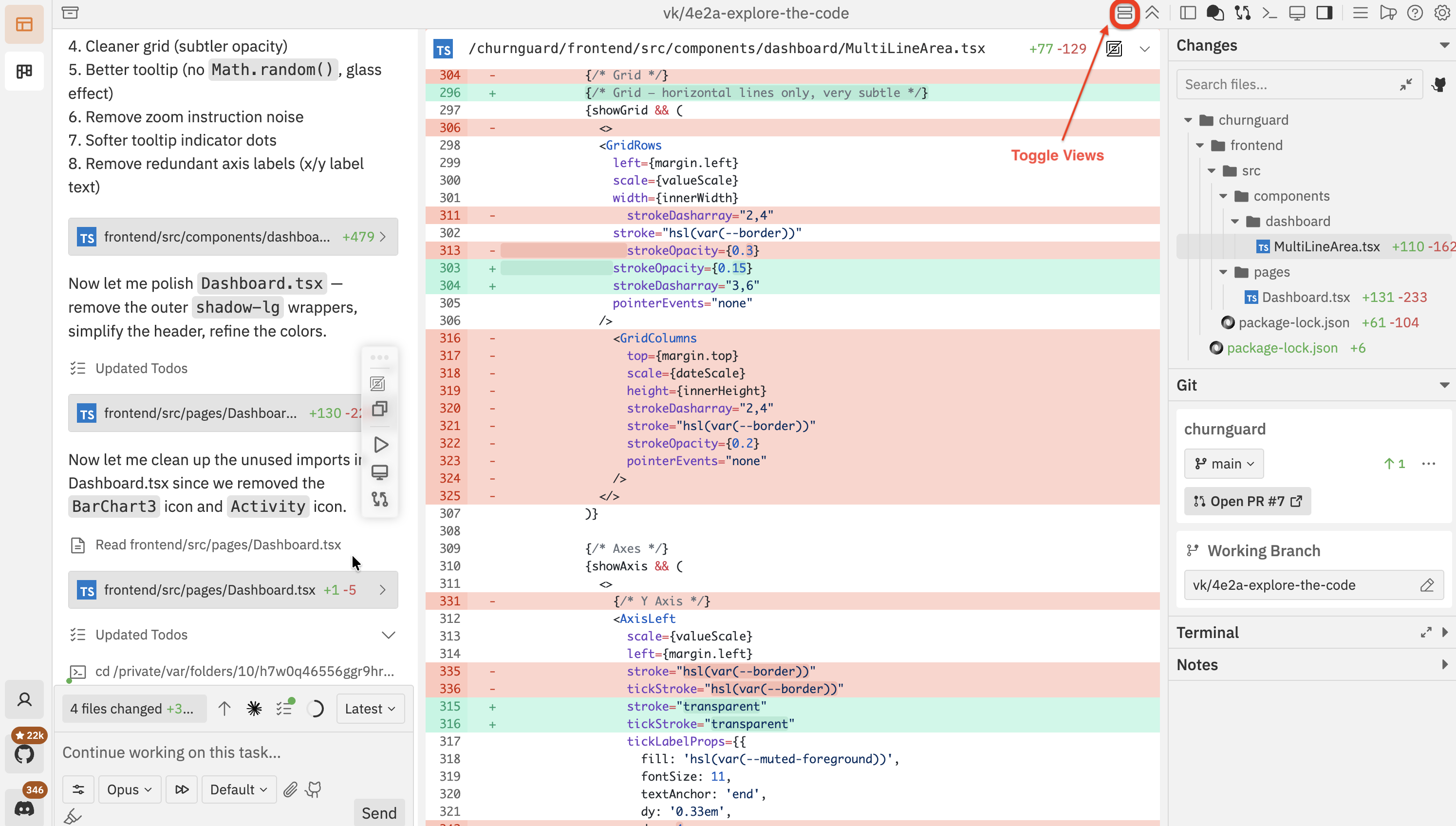
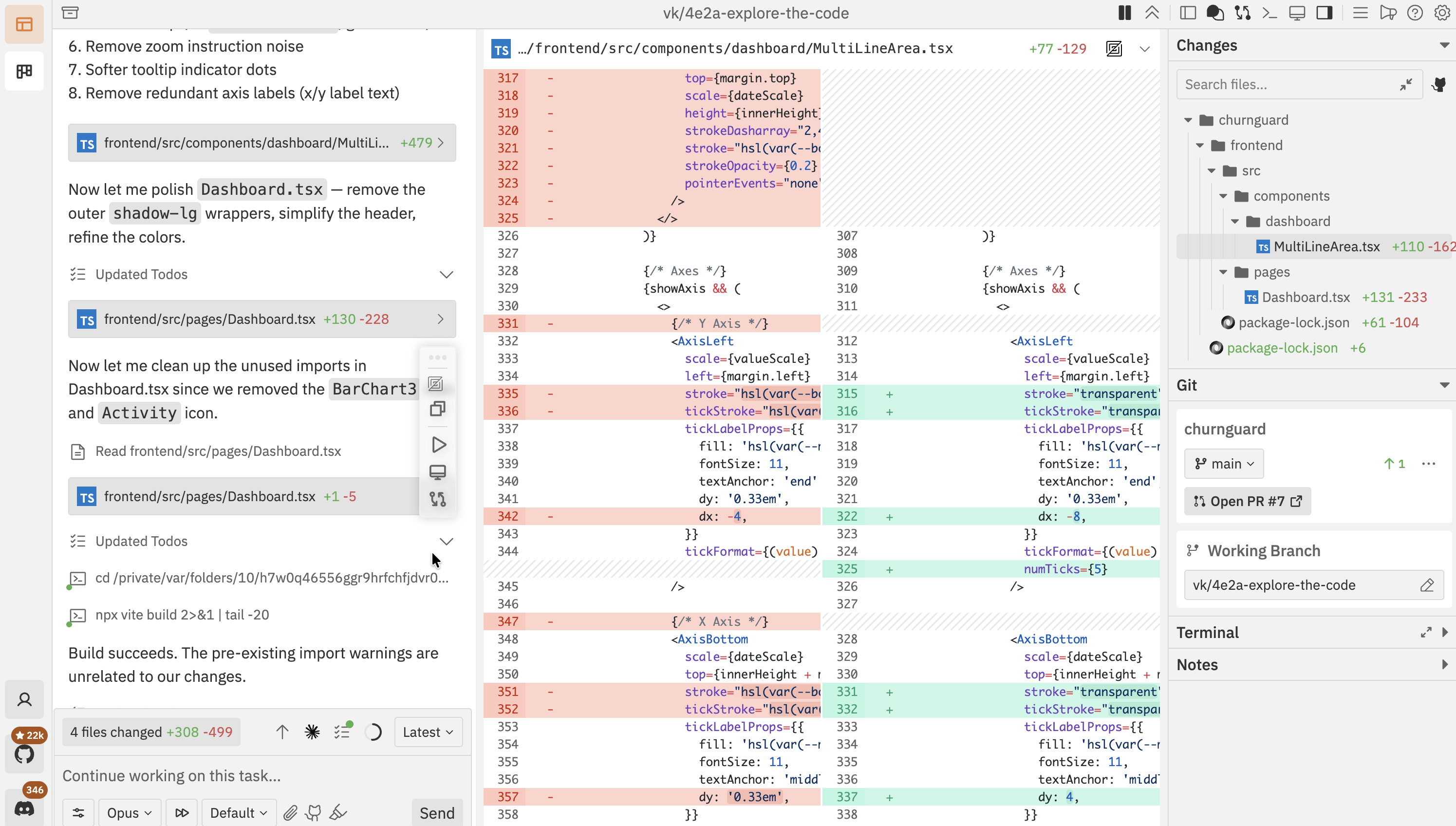
Cmd/Ctrl + K → “Switch to Side-by-Side View”).
4. Add inline comments
To leave feedback on a specific line, hover over it in the diff and click the comment icon that appears. Write your comment and submit it.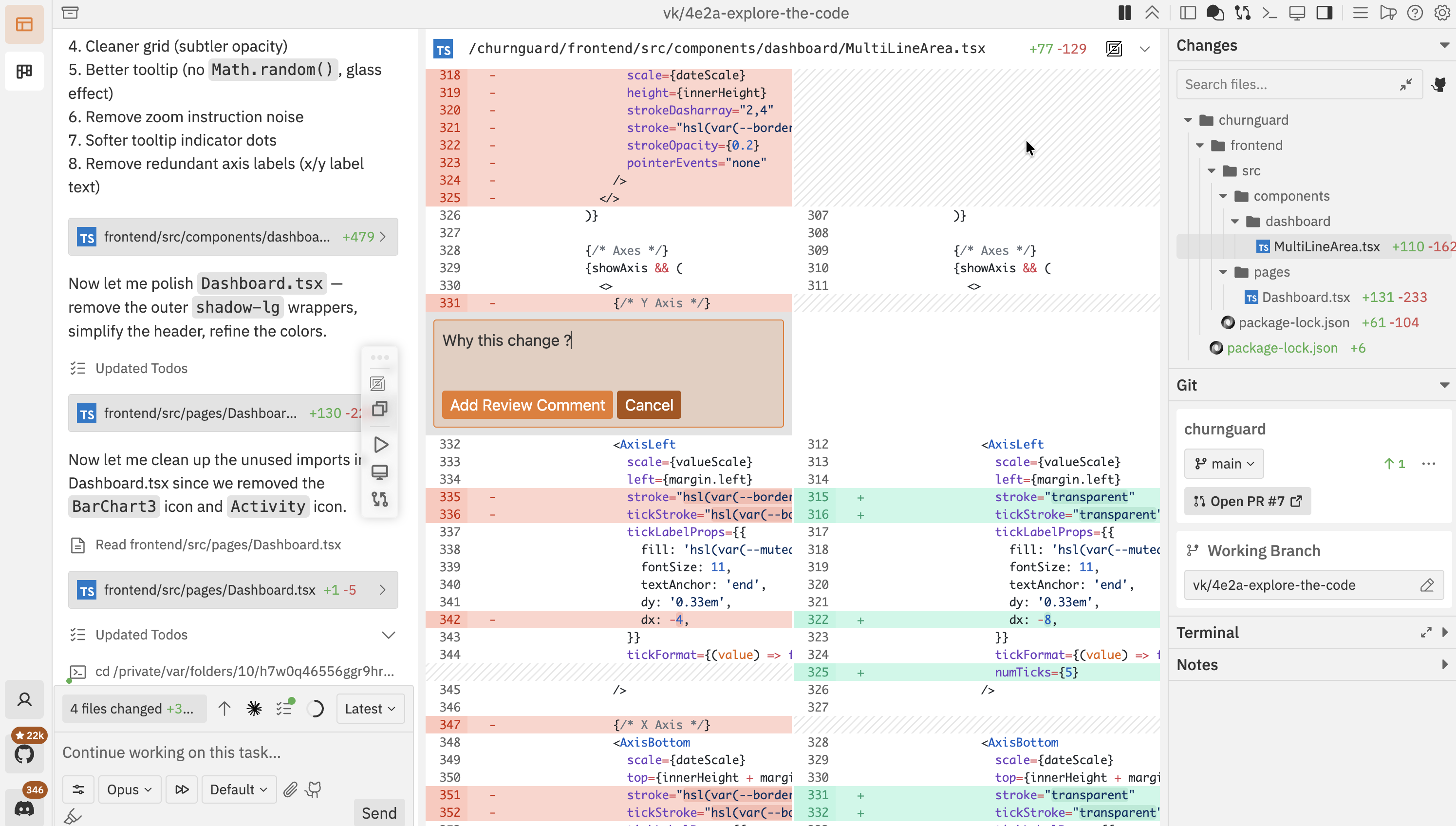
5. Send feedback to the agent
After adding your comments, send them to the agent. You can include an optional message for extra context, or just send the comments on their own. A badge shows how many review comments will be included.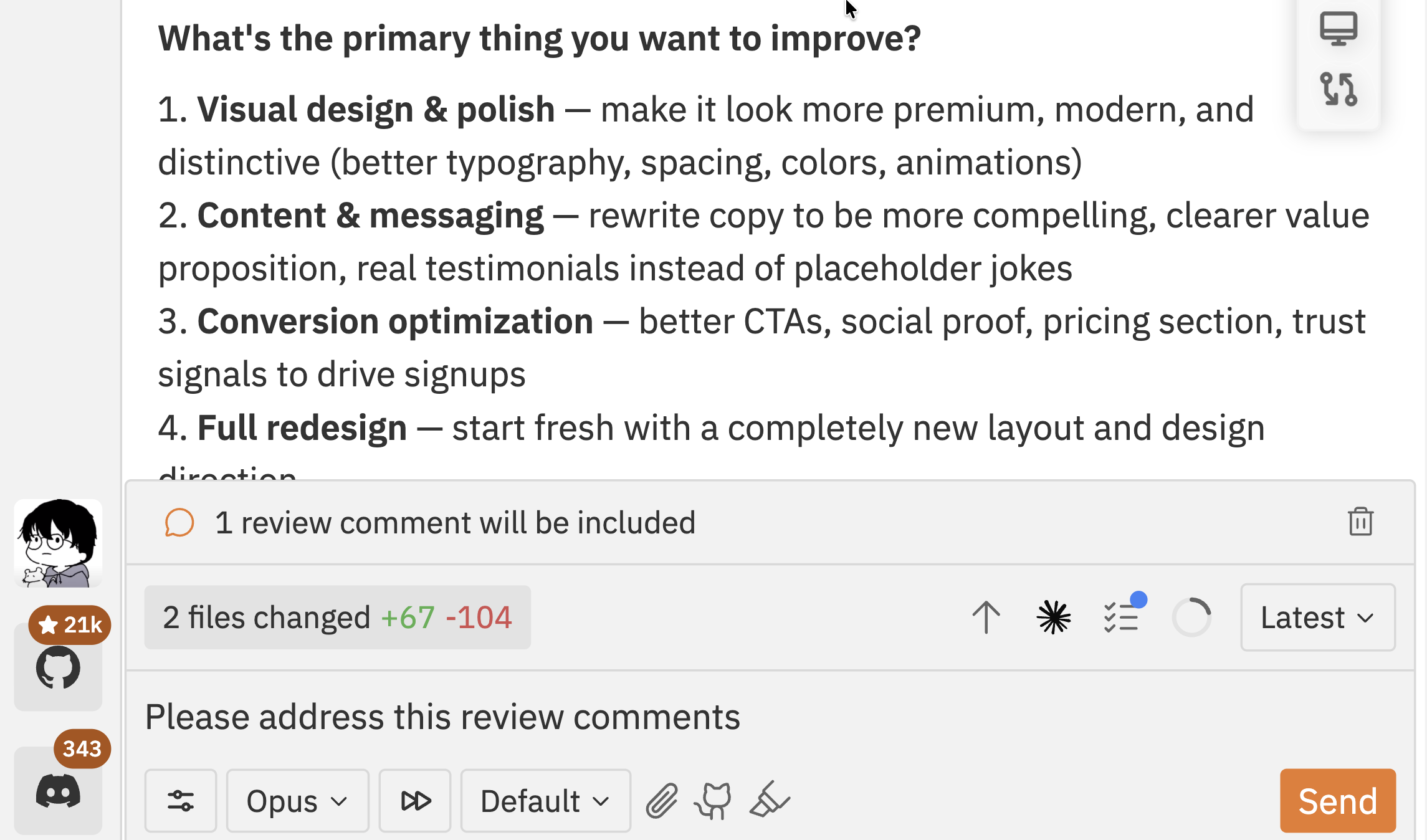
Troubleshooting
The changes panel is empty
The changes panel is empty
- The agent may not have made any changes yet — check the workspace status
- If all changes were committed and pushed, the panel resets. Check the Git section for the latest commit.
I can't see my inline comments after sending
I can't see my inline comments after sending
Comments are consumed when you send a message. They become part of the chat history. Add new comments for the next review round.
The agent didn't address my comment
The agent didn't address my comment
Be more specific. Instead of “this is wrong”, explain what is wrong and suggest a fix. Reference exact line numbers or variable names so the agent knows exactly where to look.
Next steps
Issue Management
Create and organise issues on the kanban board
Browser Testing
Preview your app in the built-in browser
Changes Panel
Full reference for diff viewer and comment features
Git Operations
Create pull requests, rebase, merge, and manage branches