

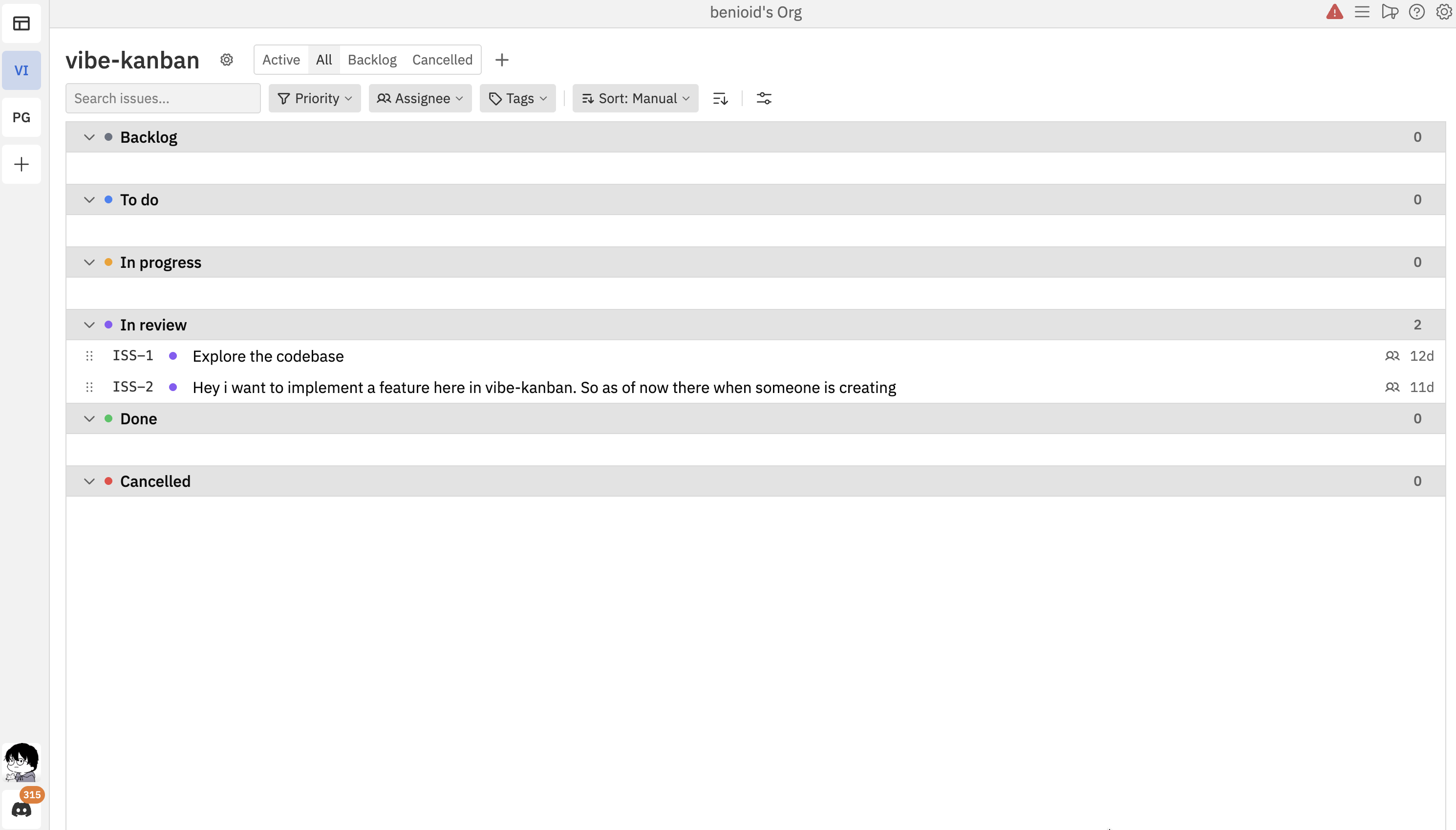
Accessing List View
To switch to list view, click the All tab in the header above the board.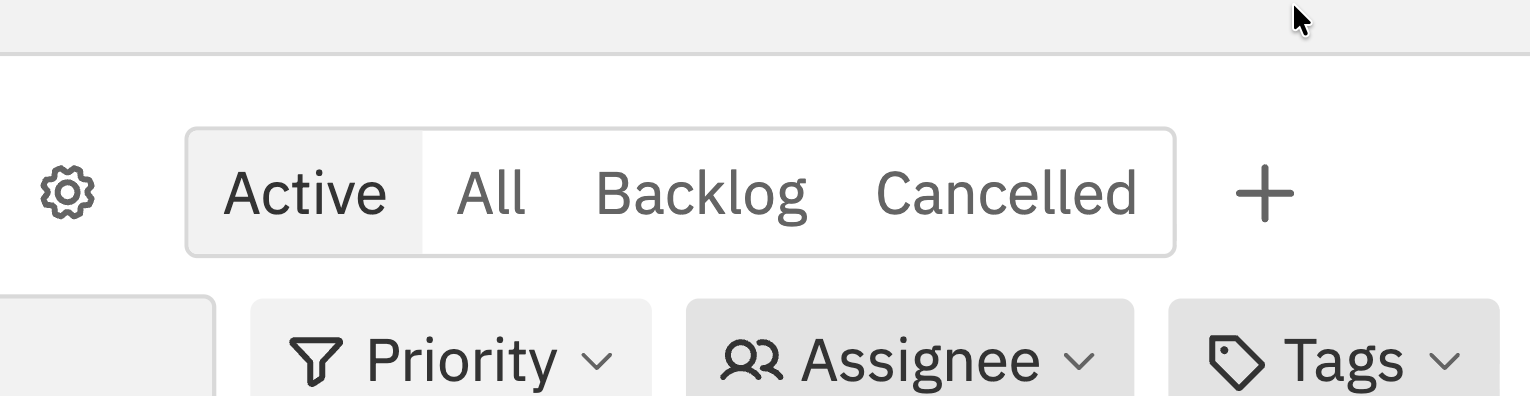
To return to the kanban view, click the Active tab.
List Layout
Issues in the list view are grouped by status. Each status section shows:- Status name with colour indicator
- Issue count for that status
- Collapsible sections - click to expand or collapse
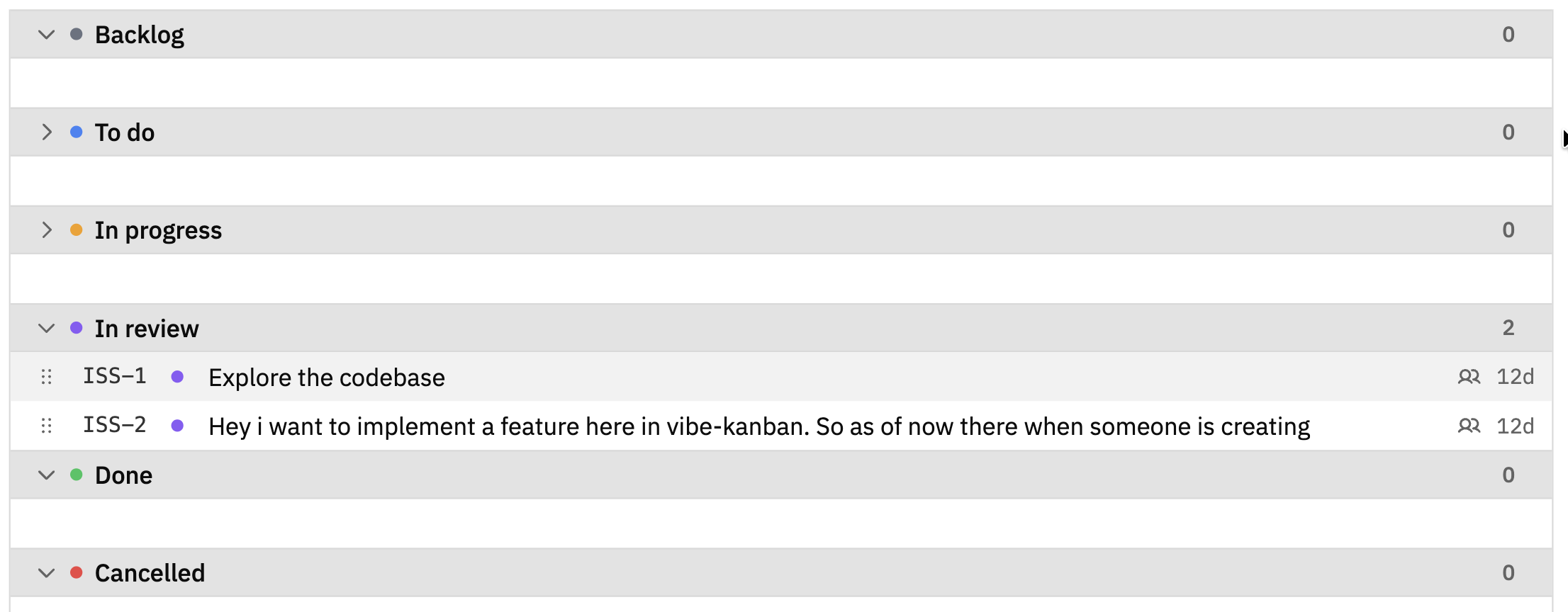
Issue Row Details
Each row in the list shows:- Simple ID - The issue identifier (e.g., ISS-1)
- Title - The issue title
- Workspace indicator - Shows if the issue has linked workspaces
- Age - How long ago the issue was created (e.g., “12d” for 12 days)
Multi-Select in List View
List view supports multi-select for bulk operations. Each row has a checkbox that appears when you hover over its left edge.Selection Methods
- Checkbox - Hover over the left edge of a row to reveal the checkbox, then click to select
- Cmd/Ctrl + Click a row to toggle it in or out of the selection
- Shift + Click a row to select a range from the last selected row
- X to toggle the currently open issue
- Shift + J / ↓ or Shift + K / ↑ to extend the selection by one row
- Cmd/Ctrl + A to select all visible issues
- Escape to clear the selection
When to Use List View
List view is best for:Reviewing all issues
See every issue in your project at once, including hidden statuses like Backlog and Cancelled.
Finding specific issues
Combined with search and filters, quickly locate issues across all statuses.
Bulk operations
Select multiple issues with checkboxes to change status, priority, or assignees in bulk.
Accessing hidden statuses
View and manage issues in Backlog, Cancelled, or other hidden statuses.
Filtering and Sorting
The filter bar works the same in list view as in kanban view:- Search - Find issues by title
- Priority - Filter by priority level
- Assignee - Filter by team member
- Tags - Filter by tags
- Sort - Change the order of issues
Related Documentation
- Kanban View - The default board view with columns
- Issues - Creating and editing issues
- Filtering & Sorting - Finding issues quickly