

This is the new Settings UI currently in Beta. It uses a form-based interface for agent configuration. For JSON editing, use the classic settings.
Agent profiles are used throughout Vibe Kanban wherever agents run: onboarding, default settings, attempt creation, and follow-ups. The default configuration appears pre-selected in the agent dropdown in the chat input.
Common Use Cases
| Use Case | Example Configuration |
|---|---|
| Fast iteration | Disable planning mode, use faster model |
| Complex tasks | Enable planning mode, use advanced model |
| Autonomous work | Skip permission prompts (use with caution) |
| Code review | Enable approvals for all changes |
| Multi-instance | Enable Claude Code Router for parallel work |
Key Concepts
Understanding these concepts helps you configure agents effectively:Planning Mode
Planning Mode
When enabled, the agent first creates a detailed plan before writing code. This adds an extra step where you review and approve the approach before implementation begins. Useful for complex tasks where you want to validate the strategy, but adds overhead for simple changes.
Permission Prompts
Permission Prompts
Agents request permission before performing potentially destructive actions like deleting files, running shell commands, or modifying system configurations. Skipping these prompts (
dangerously_skip_permissions) allows fully autonomous operation but removes safety guardrails.Claude Code Router
Claude Code Router
Distributes requests across multiple Claude Code instances running in parallel. Useful when working on several tasks simultaneously or when you want to reduce wait times by load-balancing across instances.
Sandbox Modes (Codex)
Sandbox Modes (Codex)
Controls what the agent can access:
- read-only - Can read files but not modify anything
- workspace-write - Can modify files within the project directory
- danger-full-access - Unrestricted file system access
Approval Levels
Approval Levels
Determines when the agent pauses for your confirmation:
- untrusted - Asks before every action
- on-failure - Only asks when something goes wrong
- on-request - Only asks when explicitly requested
- never - Fully autonomous (no confirmations)
Reasoning Effort
Reasoning Effort
Controls how much computational effort the model spends “thinking” before responding. Higher reasoning produces more thorough analysis but takes longer and uses more tokens. Lower reasoning is faster but may miss nuances in complex problems.
Configuration Access
Access agent profiles via Settings → Agents in the Workspaces UI.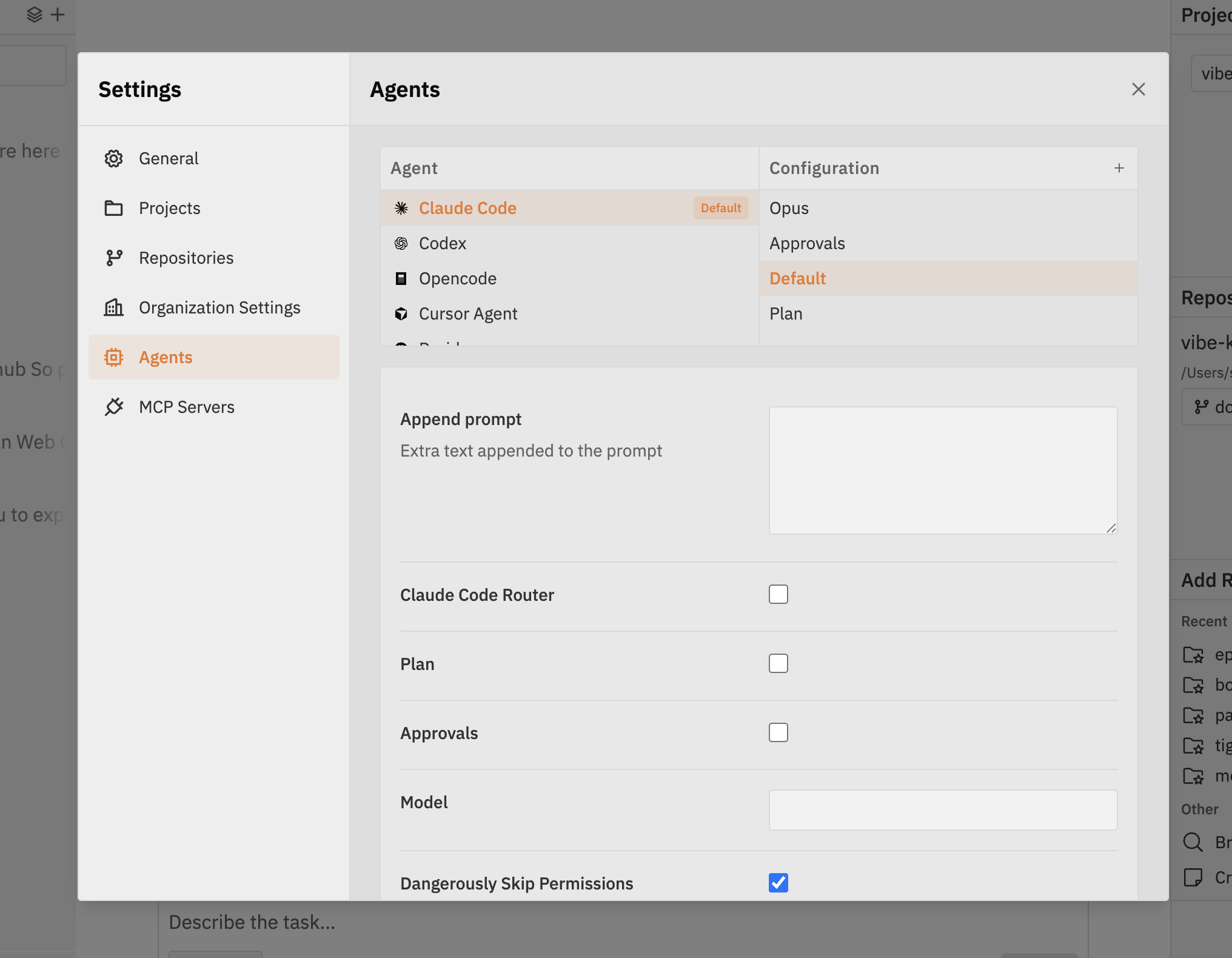
- Left column - Lists all available agents
- Right column - Lists configurations for the selected agent
Managing Configurations
Creating a New Configuration
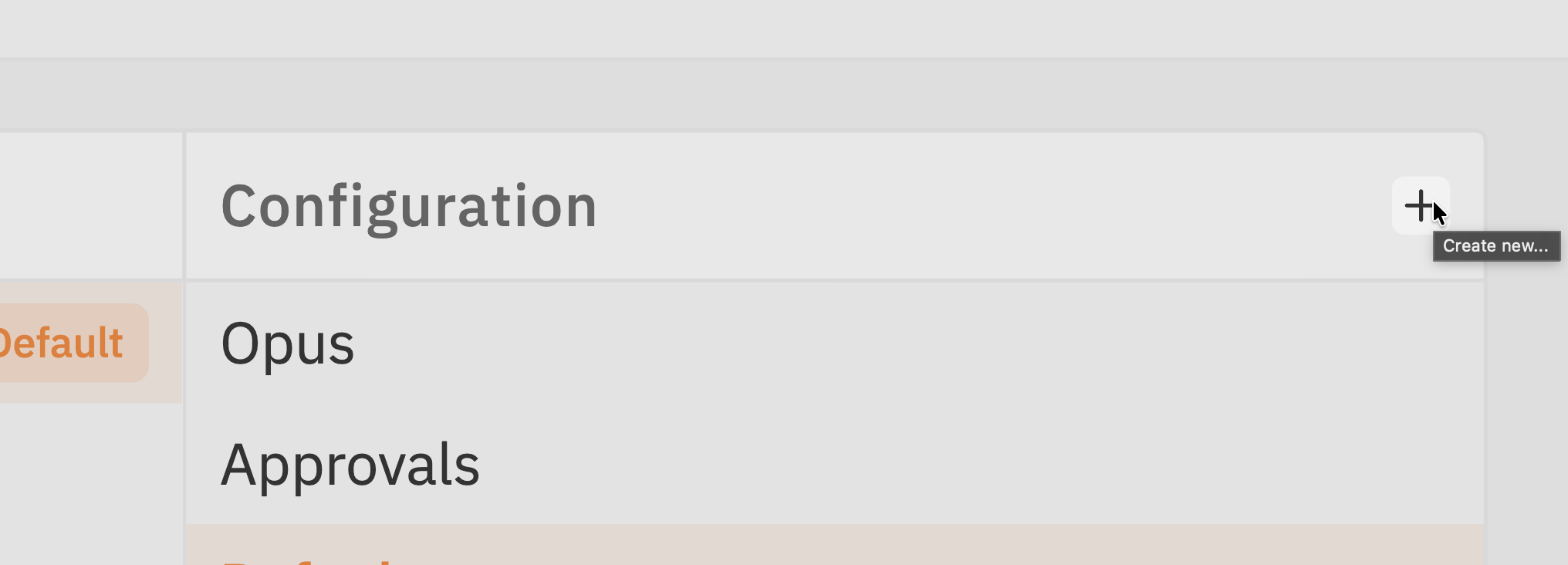
- Click the + button in the Configurations column
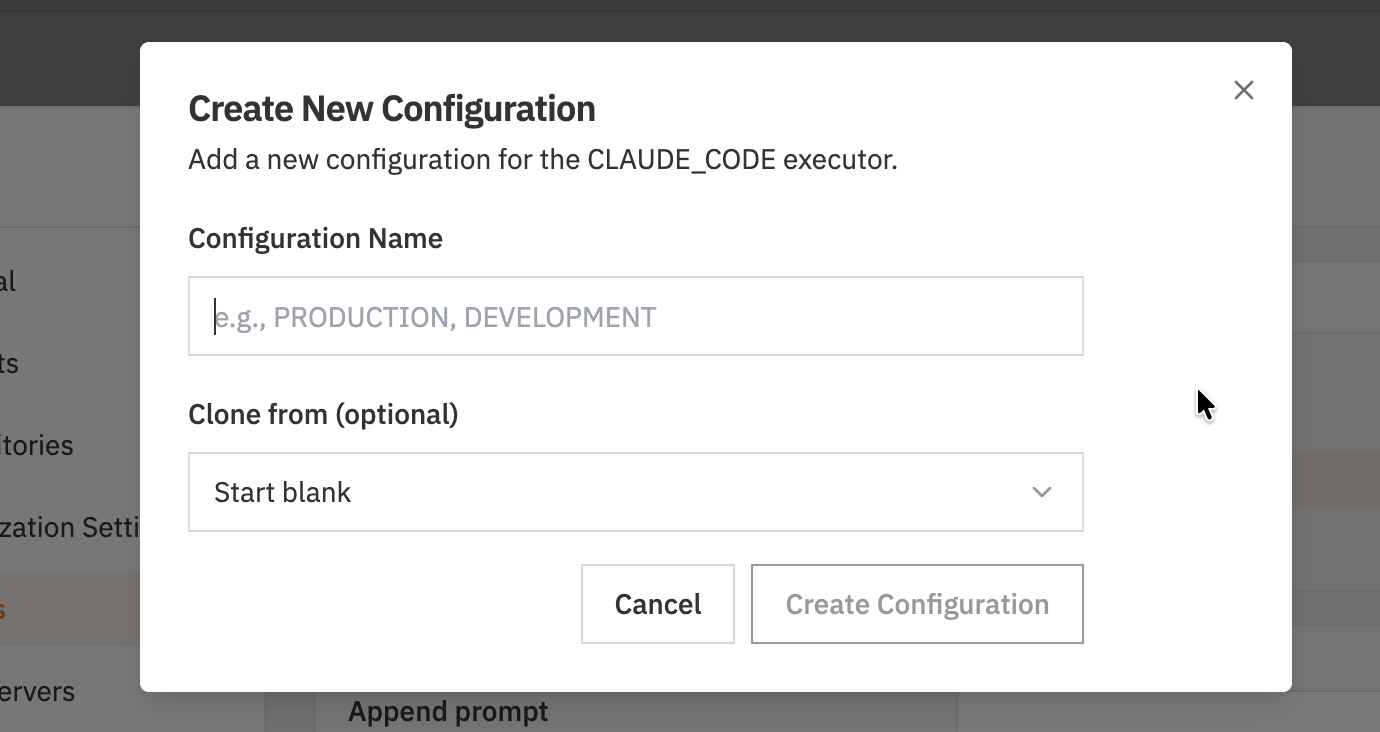
- Enter a Configuration Name (e.g., PRODUCTION, DEVELOPMENT)
- Optionally select a configuration to Clone from, or start blank
- Click Create Configuration
Editing a Configuration
- Select an agent from the left column
- Select a configuration from the right column
- Edit the settings in the form below
- Click Save in the bottom bar
Deleting a Configuration
- Select the configuration to delete
- Click the delete button
- Confirm deletion
Setting a Default Configuration
Click the Default badge next to a configuration to make it the default for that agent. The default configuration:- Appears pre-selected in the agent dropdown when creating new attempts
- Is used for follow-up messages in workspaces
- Shows in the chat input toolbar as the current agent/variant
Agent Configuration Options
- CLAUDE_CODE
- GEMINI
- AMP
- CODEX
- CURSOR
- OPENCODE
- QWEN_CODE
- DROID
Enable planning mode for complex tasks
Route requests across multiple Claude Code instances
Skip permission prompts (use with caution)
Universal Options
These options work across multiple agent types:Text appended to the system prompt
Using Agent Configurations
Once configured, your agent variants appear in the chat input toolbar, allowing quick switching between configurations.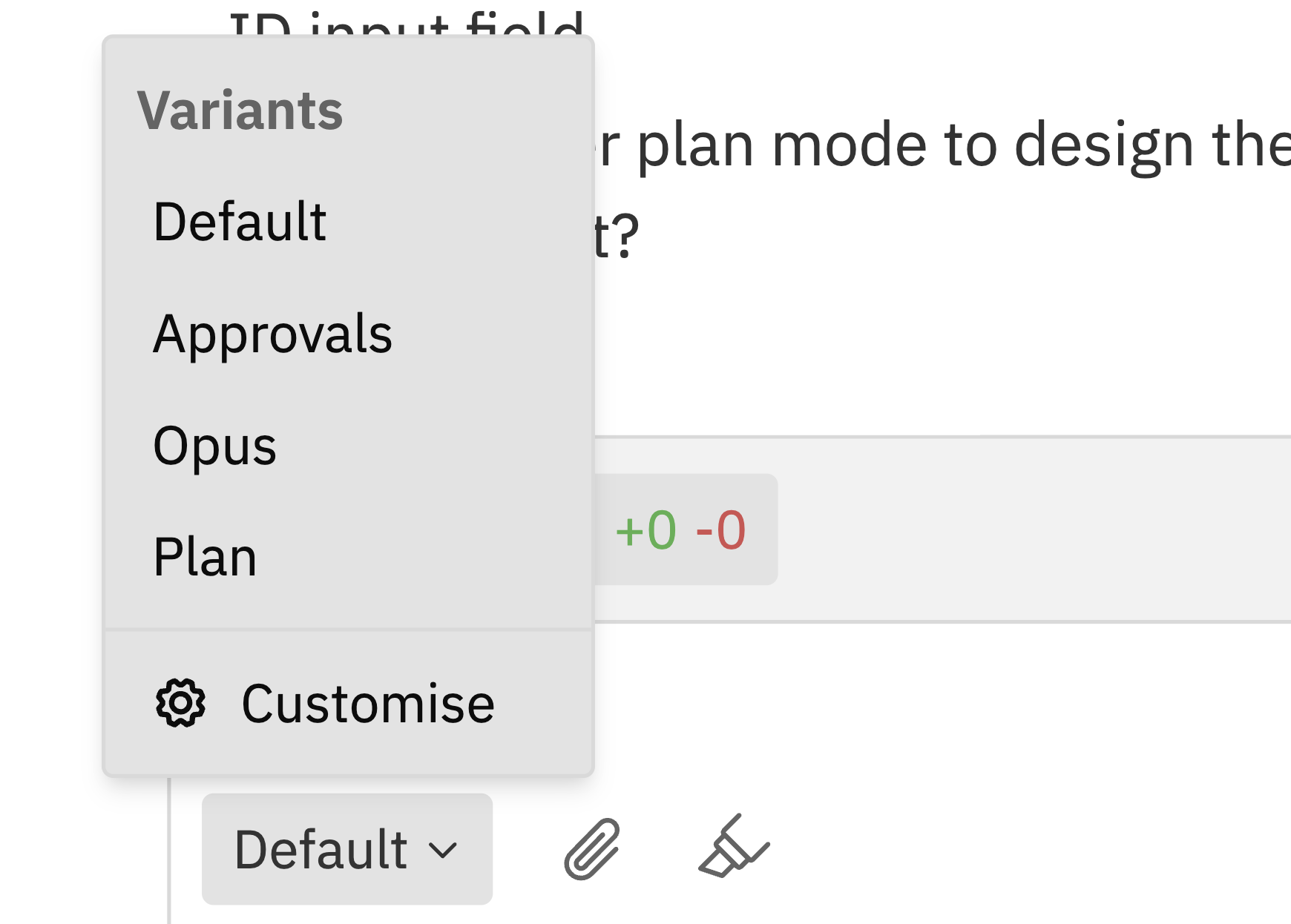
Default Configuration
Set your default agent and variant in Settings → General → Default Coding Agent for consistent behaviour across all attempts.
Per-Attempt Selection
Override defaults when creating attempts by selecting different agent/variant combinations in the attempt dialogue.
Related Configuration
MCP (Model Context Protocol) servers are configured separately under Settings → MCP Servers but work alongside agent profiles to extend functionality.