

What are tags?
Tags are reusable text snippets that you can quickly insert into workspace prompts by typing@ followed by the tag name. When you select a tag, its content is automatically inserted at your cursor position.
Managing tags
Access tags from Settings → General → Tags. Tags are available globally across all projects in your workspace.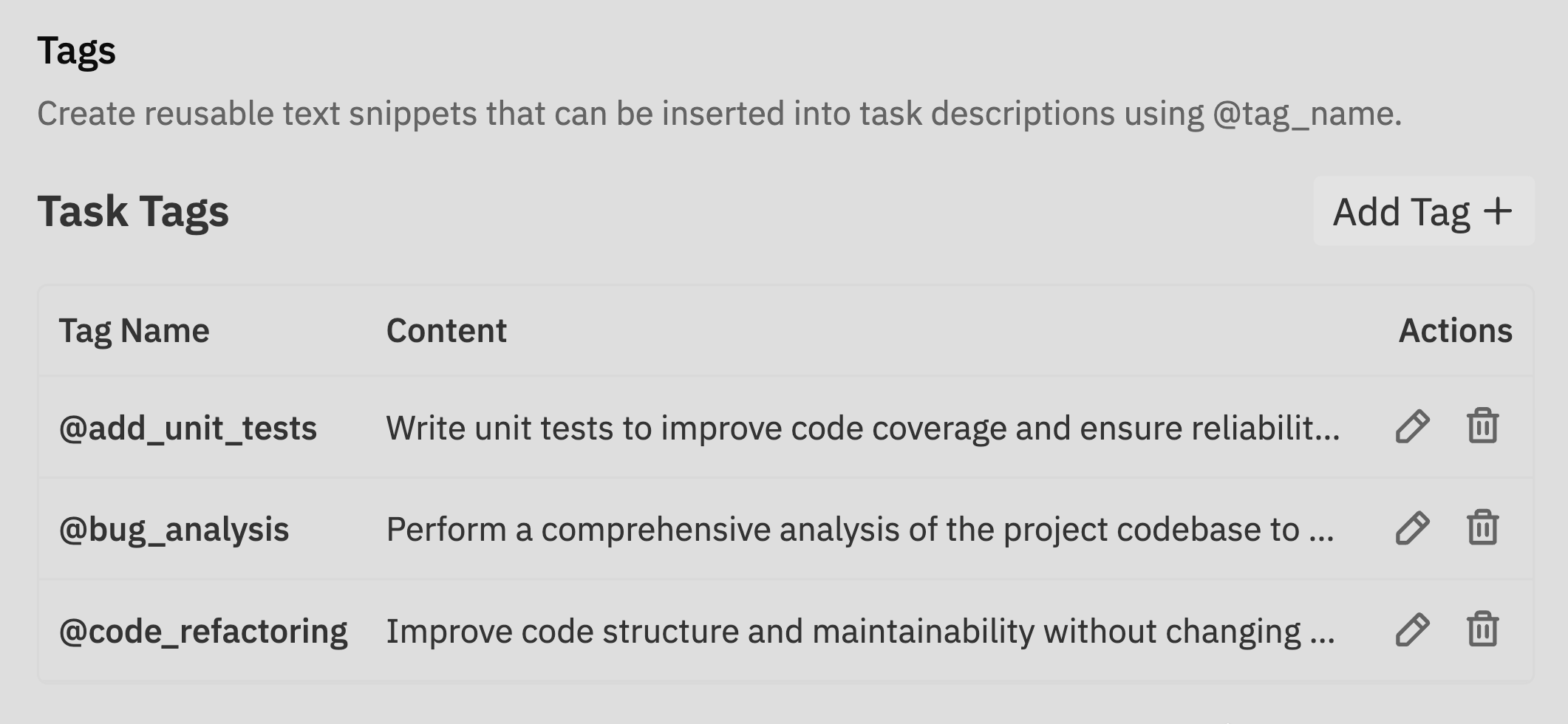
1
Create a new tag
Click Add Tag to create a new tag.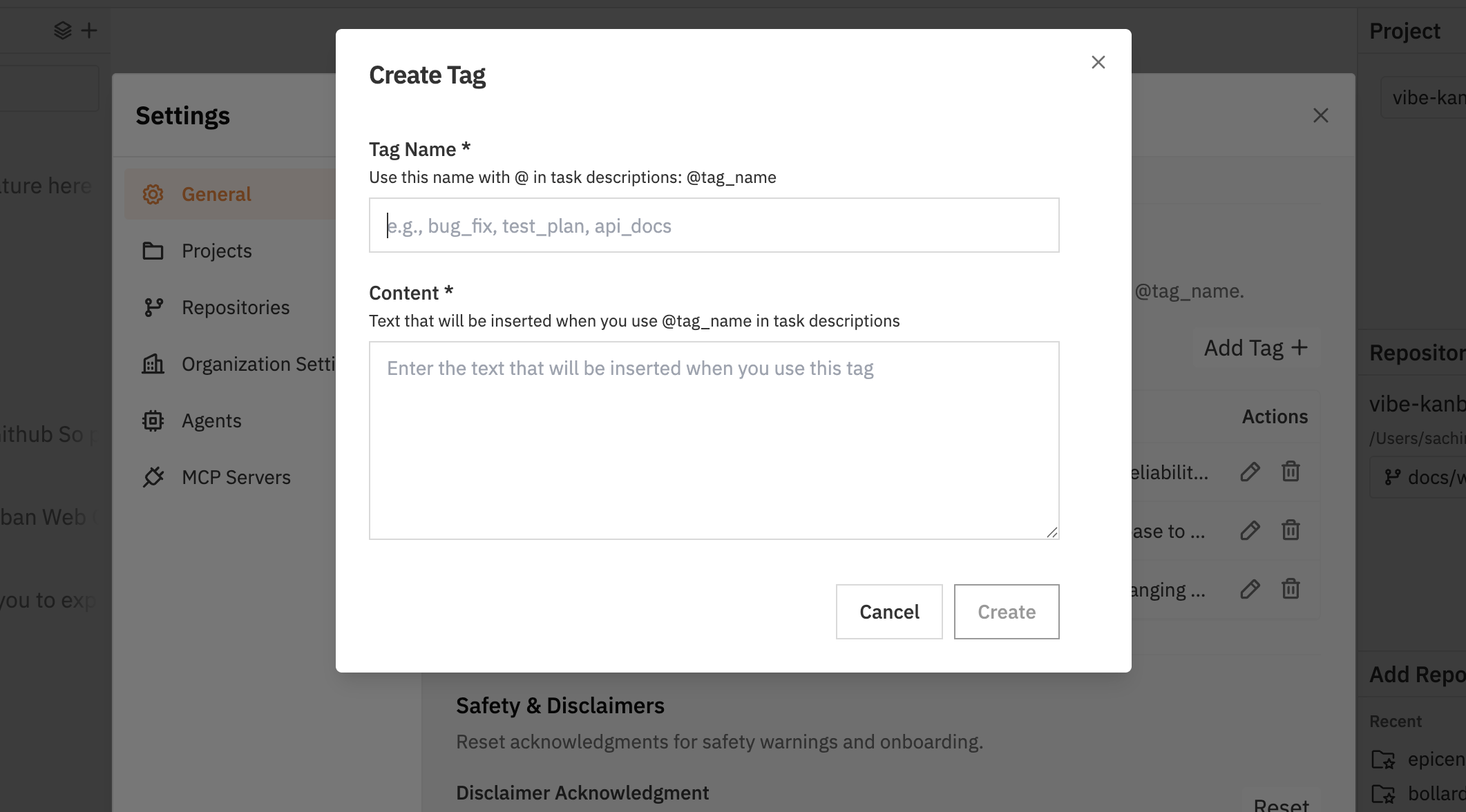
- Tag name: Use snake_case without spaces (e.g.,
acceptance_criteria) - Content: The text that will be inserted when the tag is used
2
Edit existing tags
Click the edit icon (✏️) next to any tag to modify its name or content.
3
Remove unwanted tags
Click the delete icon (🗑️) to remove tags you no longer need.
Using tags
Insert tags into workspace prompts and follow-up messages using @mention autocomplete.1
Trigger autocomplete
When writing a prompt, type 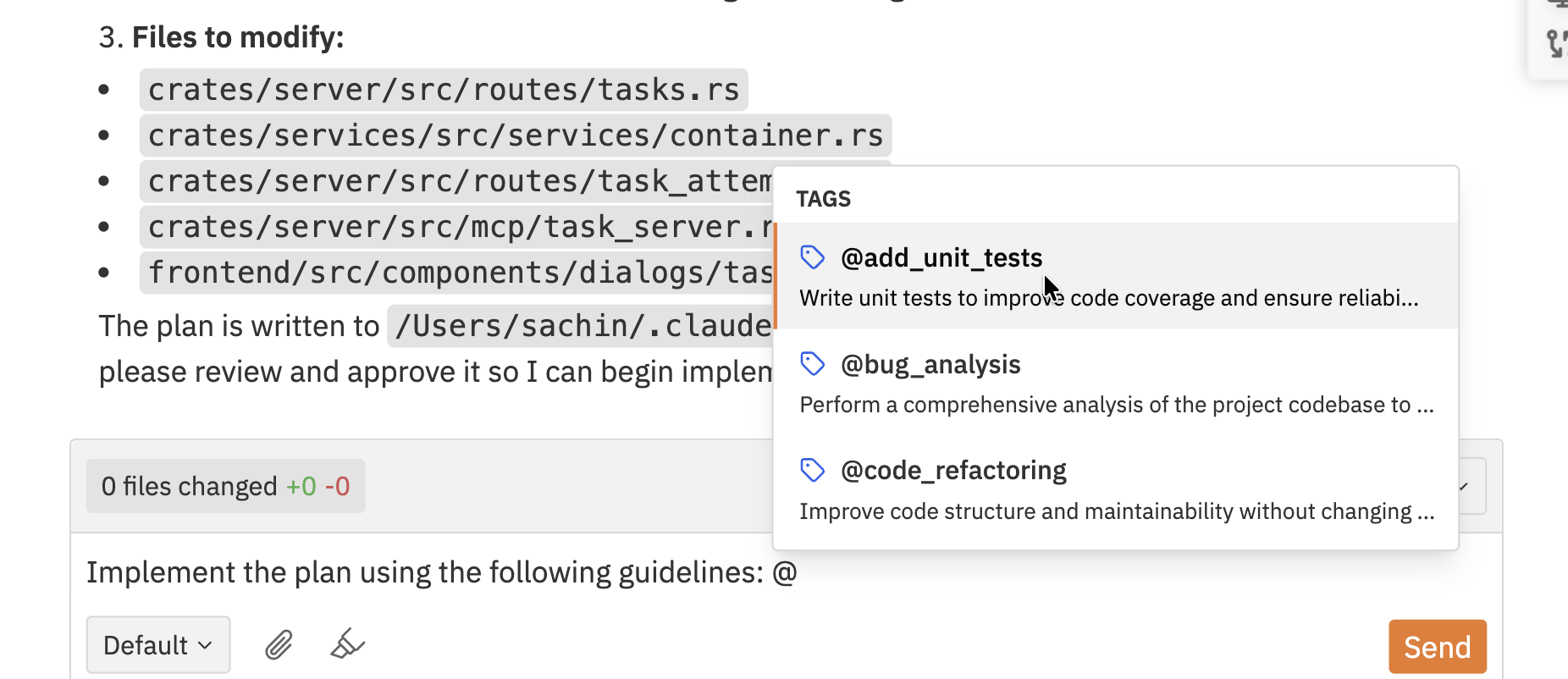
@ to trigger the autocomplete dropdown.2
Search and select
Continue typing to filter tags by name, then:
- Click on a tag to select it
- Use arrow keys to navigate and press Enter to select
- Press Escape to close the dropdown
The tag’s content is automatically inserted at your cursor position, replacing the @query.
Common use cases
Bug report templates
Bug report templates
Create a
bug_report tag with standardised bug reporting fields:Acceptance criteria checklists
Acceptance criteria checklists
Create an
acceptance_criteria tag for feature requirements:Code review guidelines
Code review guidelines
Create a
code_review tag with review checklist items: