

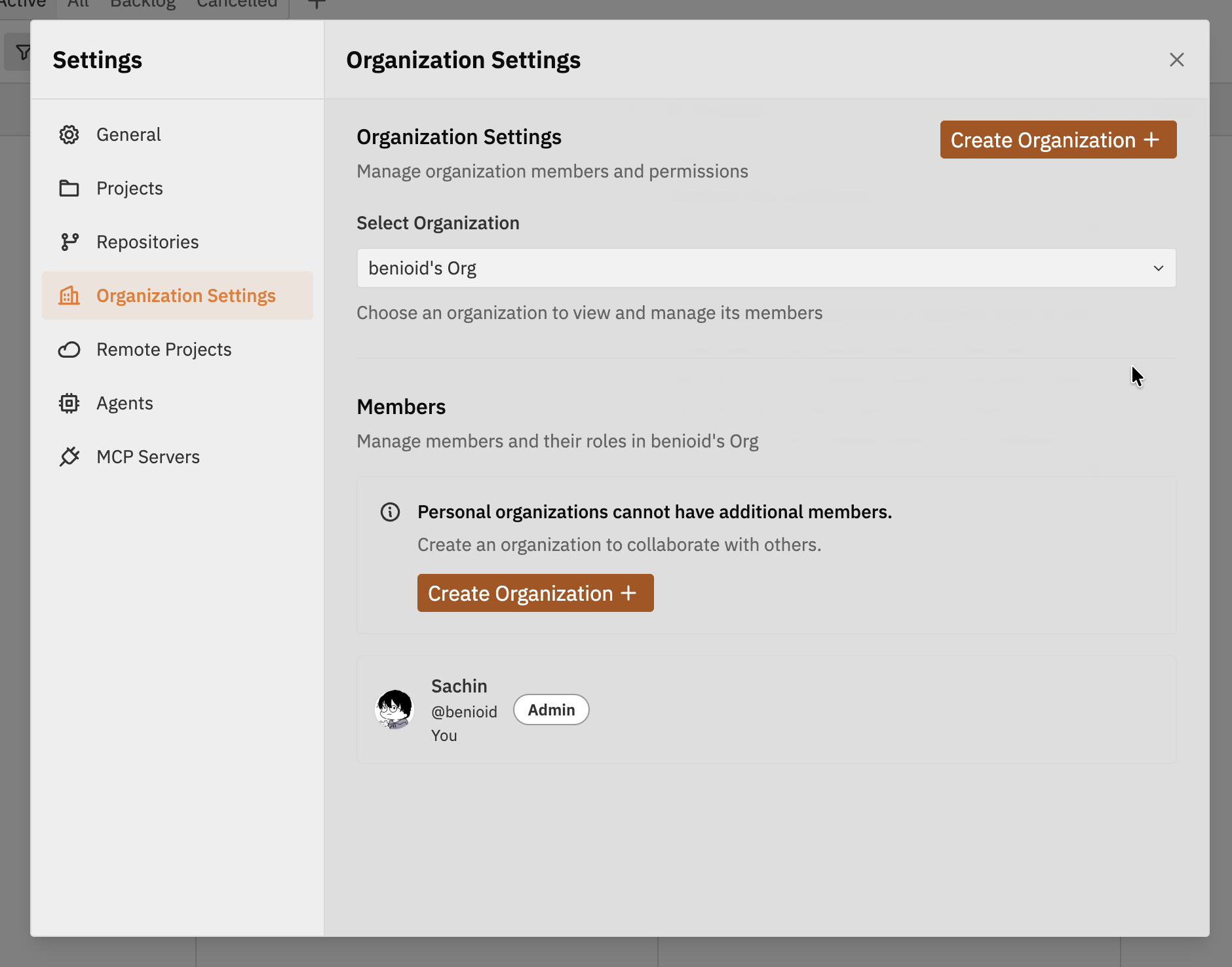
Accessing Organisation Settings
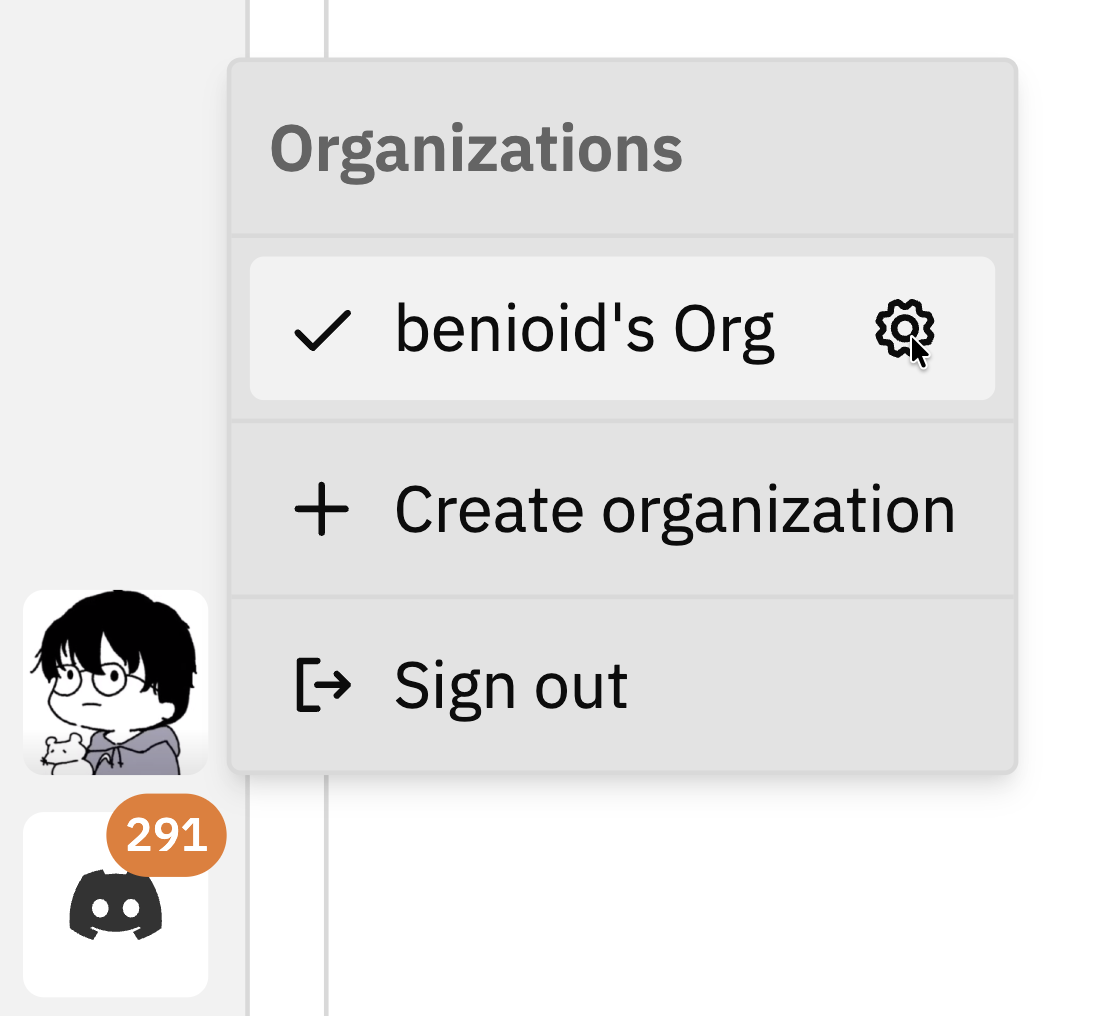
To open Organisation Settings:- Click your profile icon in the bottom of the left sidebar
- Click the settings icon () next to your organisation name
Organisation Selection
At the top of the settings page, you can:- Switch organisations - Use the dropdown to select a different organisation
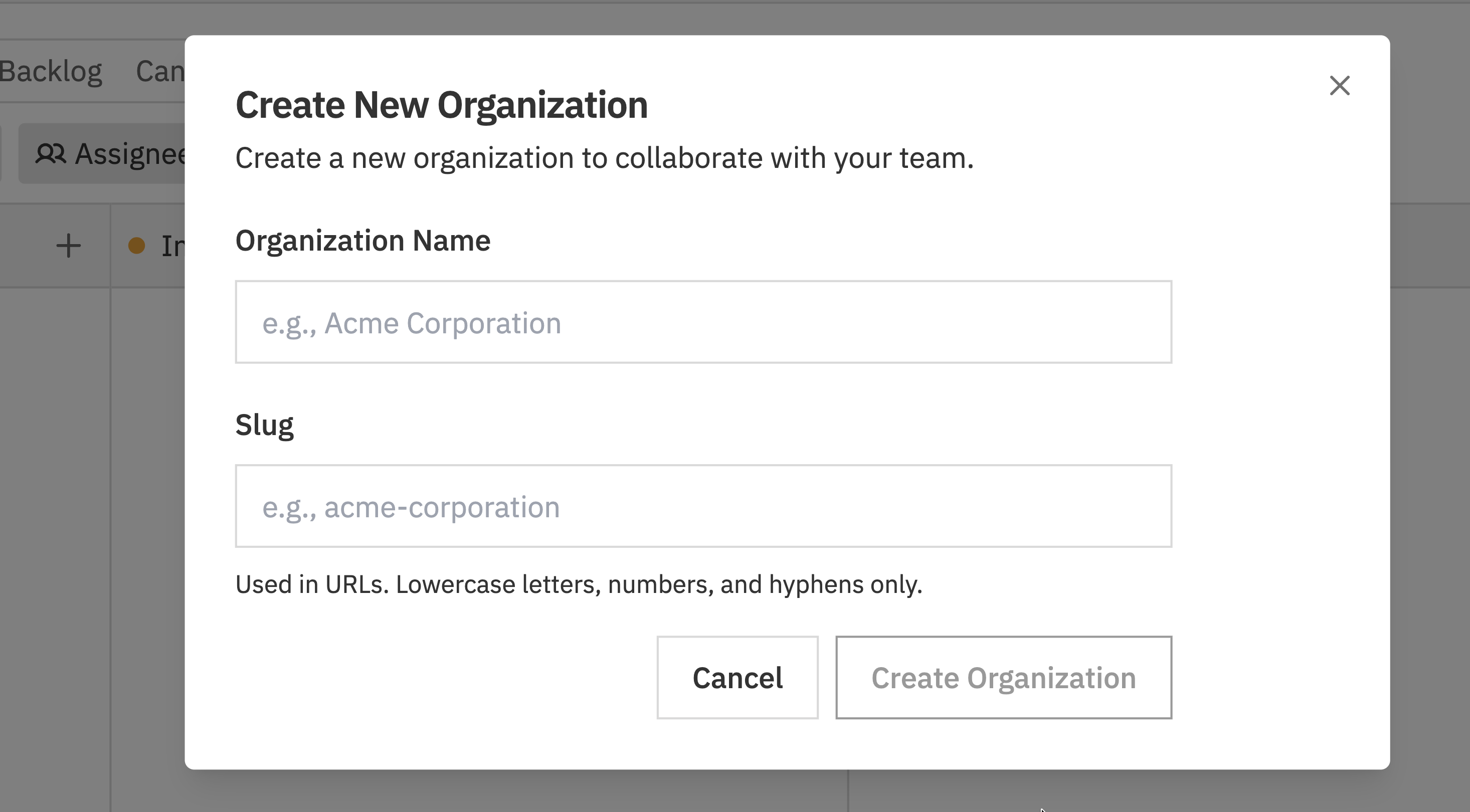
- Create organisation - Click Create Organization + to create a new organisation
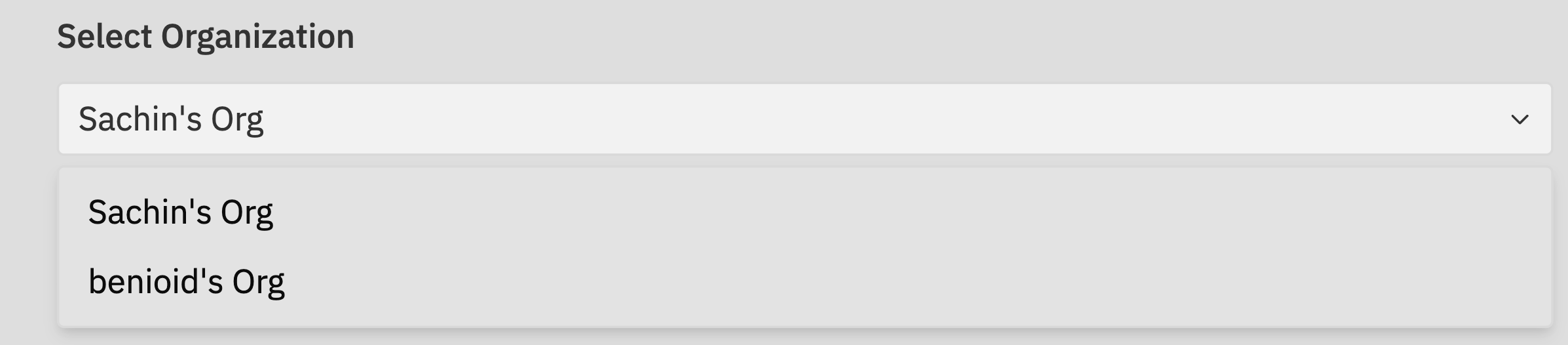
If you’re a member of multiple organisations, switching here changes which organisation’s settings you’re viewing and editing.
Personal Organisations
When you first sign up, a personal organisation is created for you with an Initial Project. Personal organisations have some restrictions:- Cannot invite additional members
- Cannot be deleted
- Are only accessible by you
Pending Invitations
This section is only visible to Admins and only for non-personal organisations.
- Email address - Who was invited
- Status - Pending acceptance
- Expiry - Invitations expire after 7 days
- Revoke - Cancel the invitation if needed
Revoking an Invitation
To revoke a pending invitation:- Find the invitation in the list
- Click the Revoke button
- The invitation link will no longer work
Members
The Members section shows everyone who has access to the organisation: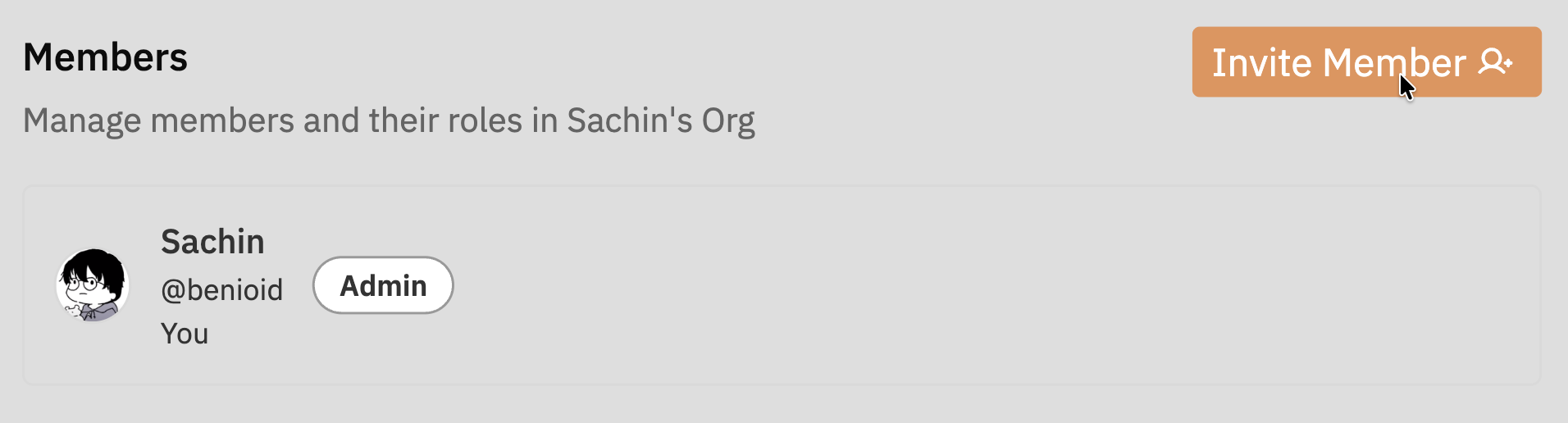
| Column | Description |
|---|---|
| Name | Member’s display name and avatar |
| Role | Admin or Member |
| Actions | Role change, remove (Admin only) |
Member Roles
| Role | Permissions |
|---|---|
| Admin | Full access - manage members, invitations, settings, delete organisation |
| Member | Access projects and issues, cannot manage organisation settings |
Changing a Member’s Role
Only Admins can change member roles.
- Find the member in the list
- Click the role dropdown next to their name
- Select the new role (Admin or Member)
- The change takes effect immediately
Removing a Member
- Find the member in the list
- Click the Remove button
- Confirm the removal when prompted
Inviting New Members
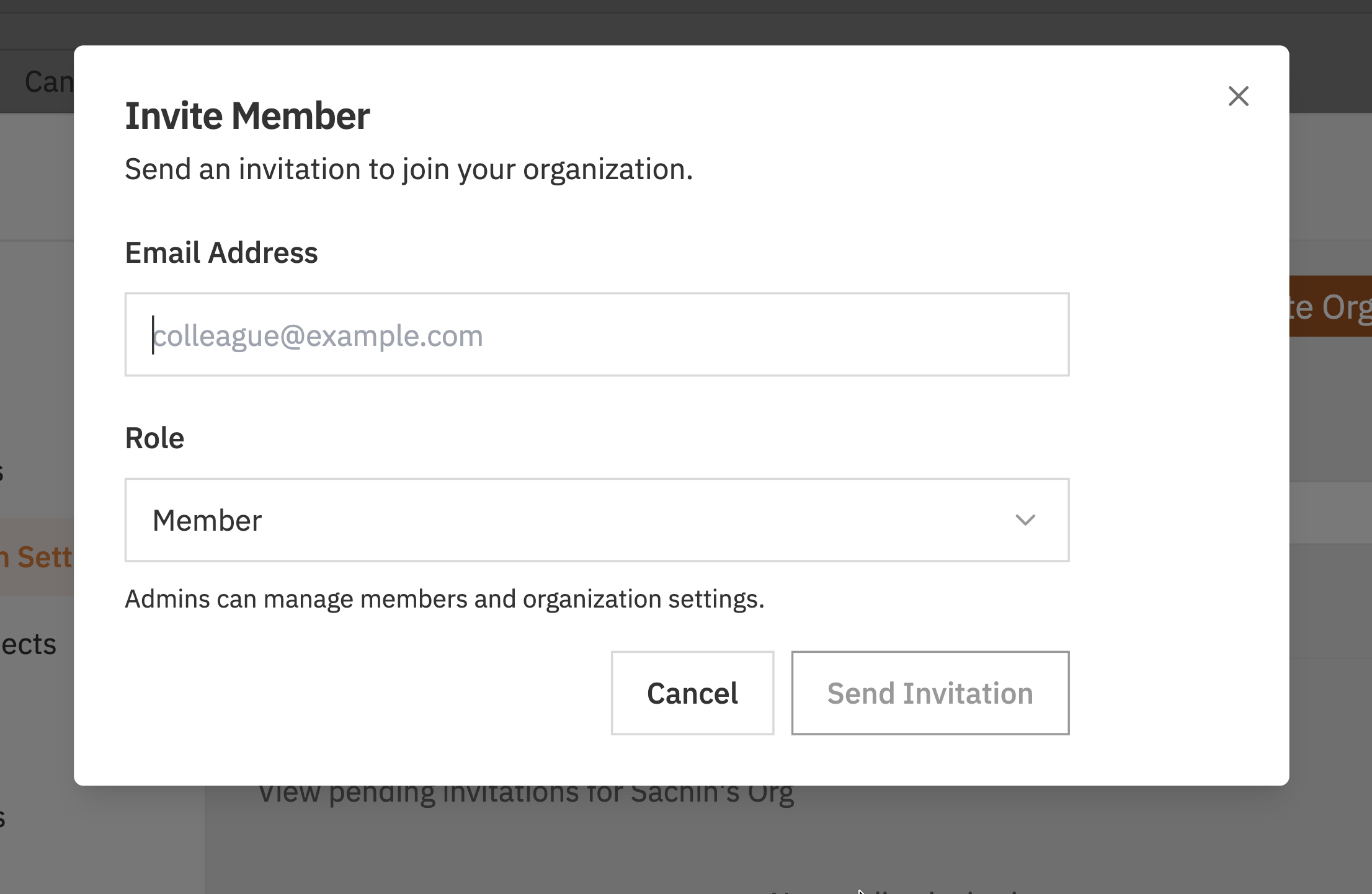
To invite someone to your organisation:- Click the Invite Member button
- Enter their email address
- Select their role (Admin or Member)
- Click Send Invitation
Billing
This section is only visible to Admins of non-personal organisations.
- View your current plan
- Update payment methods
- View invoices and billing history
Danger Zone

Deleting an Organisation
Only Admins can delete organisations. Personal organisations cannot be deleted.
- Scroll to the Danger Zone section
- Click Delete
- Confirm the deletion when prompted
- All projects, issues, and data will be permanently deleted
Related Documentation
- Organisations - Creating and understanding organisations
- Team Members - Inviting and managing team members
- Projects - Managing projects within organisations